
Create application access token & authorization header
Create
To applicationauthentication accessagainst token & authorization header
This article explains how to authenticate tothe Microsoft Graph usingAPI applicationthere are two general concepts. Application permissions. Useallow this method for unattended automation where no signed-in user is involved.
When to usean application authentication
Use app-only authentication when:
Preferred options in enterprise environments:
Note The OAuth 2.0 client credentials flow doesnotreturn a refresh token. To get a new token, request a new access token again.
Prerequisites
This guide focuses on authentication as an application to create unattended automations. To create or renew a token in the user context there are other instructions.
Use case
This authentication is required if you want to retrieve, update, or create resources using the Microsoft APIs (Azure Management API, Microsoft Graph applicationAPI). This is for application-based permissions
Example:
Graph clientAPI secretauthentication
To authenticate with application permission you have to use an Microsoft Entra ID App Registration. There you can specify an Client Secret as it is described here: Get app details and gr... | LNC Docs (lucanoahcaprez.ch)
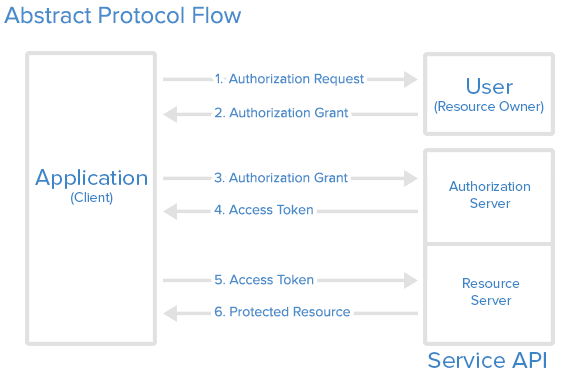
The authentication method used for Microsoft Graph API is the industry-standard OAuth 2.0. This concept uses access tokens for authenticating against API endpoints. These access tokens are then sent to the resource server in the HTTP header. Therefore we have to create the header correctly to use the resources of the Microsoft Graph API.
Build header via PowerShell script
The following scripts creates the header that contains the header property and the corresponding Bearer token. This function needs the arguments Tenant ID, Client (Application) ID and the Client Secret. This function has to be called the first time with these three parameters. Then you can use the refresh token of the first authentication request to consist the session.
Attention: This function returns a complete header. If you want to specify more information in the request header you have to use the function lower on this page.
# Function for getting Microsoft Entra ID Access Header
Function Build-MicrosoftEntraIDApplicationAccessHeader(){
    param(
        [Parameter(Mandatory=$TenantIdtrue)]
        [string] $tenantid,
        [string] $clientid,
        [string] $clientSecret,
        [string] $refreshtoken
    )

    $authenticationurl = "<tenant-id>"https://login.microsoftonline.com/$tenantid/oauth2/v2.0/token"

    if($refreshtoken -and $ClientIdtenantId){
        $tokenBodySource = @{
            grant_type = "<app-client-id>"refresh_token"
            $ClientSecretscope = "<client-secret>"https://graph.microsoft.com/.default"
            refresh_token  = $TokenBodyrefreshtoken
        }
    }
    elseif($tenantId -and $clientid -and $clientSecret){
        $tokenBodySource = @{
            grant_type = "client_credentials"
            scope = "https://graph.microsoft.com/.default"
            client_id  = $ClientIdclientid
            client_secret = "$ClientSecretclientSecret"
        }
    }
    else{
        Write-Error "Authorization not successful. Not enough information provided."
    }

    while ([string]::IsNullOrEmpty($TokenResponseAuthResponse.access_token)) {
        $AuthResponse = try {
            Invoke-RestMethod ` -Method POST `-Uri $authenticationurl -UriBody $tokenBodySource
        }
        catch {
            $ErrorAuthResponse = $_.ErrorDetails.Message | ConvertFrom-Json
            if ($ErrorAuthResponse.error -ne "authorization_pending") {
                Write-Error "Authorization not successful. Error while posting body source: $($ErrorAuthResponse.error)"
                throw
            }
        }
    }

    if($AuthResponse.token_type -and $AuthResponse.access_token){
        $global:MicrosoftEntraIDAccessToken = "$($AuthResponse.token_type) $($AuthResponse.access_token)"
        $global:MicrosoftEntraIDHeader = @{
            "Authorization" = "$global:MicrosoftEntraIDAccessToken"
        }
        Write-Output "Authorization successful! Token saved in variable."
    }
    else{
        Write-Error "Authorization not successful. Not enough information provided."
    }
}

# Authorization Header with ClientId & ClientSecret
$tenantId="<tenantid>"
$ClientId="<appregistrationclientapp>"
$ClientSecret="<appregistrationclientsecret>"
Build-MicrosoftEntraIDApplicationAccessHeader -tenantid $tenantid -clientid $clientid -clientSecret $clientSecret

# Authorization Header with refresh_token
$tenantId="<tenantid>"
$refreshtoken="<yourrefreshtoken>"
Build-MicrosoftEntraIDApplicationAccessHeader -tenantid $tenantid -refreshtoken $refreshtoken
Get Bearer Token via PowerShell script
This function allows you to use more than one header property. It only returns the access token which then has to be built into a header by itself. But the other functionalities and parameters work like the function above.
# Function for getting Microsoft Entra ID Access Token
function Get-MicrosoftEntraIDApplicationAccessToken {
    param(
        [Parameter(Mandatory=$true)]
        [string] $tenantid,
        [string] $clientid,
        [string] $clientSecret,
        [string] $refreshtoken
    )

    $authenticationurl = "https://login.microsoftonline.com/$TenantId/tenantid/oauth2/v2.0/token"

    `if($refreshtoken -and $tenantId){
        $tokenBodySource = @{
            grant_type = "refresh_token"
            scope = "https://graph.microsoft.com/.default"
            refresh_token  = $refreshtoken
        }
    }
    elseif($tenantId -and $clientid -and $clientSecret){
        $tokenBodySource = @{
            grant_type = "client_credentials"
            scope = "https://graph.microsoft.com/.default"
            client_id  = $clientid
            client_secret = "$clientSecret"
        }
    }
    else{
        Write-Error "Authorization not successful. Not enough information provided."
    }

    while ([string]::IsNullOrEmpty($AuthResponse.access_token)) {
        $AuthResponse = try {
            Invoke-RestMethod -Method POST -Uri $authenticationurl -Body $TokenBodytokenBodySource
        `}
        -ContentTypecatch "application/x-www-form-urlencoded"{
            $HeaderErrorAuthResponse = @{$_.ErrorDetails.Message | ConvertFrom-Json
            if ($ErrorAuthResponse.error -ne "authorization_pending") {
                Write-Error "Authorization not successful. Error while posting body source: $($ErrorAuthResponse.error)"
            }
        }
    }

    if($AuthResponse.token_type -and $AuthResponse.access_token){
        $global:MicrosoftEntraIDAccessToken = "Bearer$($AuthResponse.token_type) $($TokenResponse.AuthResponse.access_token)"
        "Content-Type" =Write-Output "application/json"Authorization successful! Token saved in variable."
    }
    else{
        Write-Error "Authorization not successful. Not enough information provided."
    }
}

# Authorization with ClientId & ClientSecret
$tenantId="<tenantid>"
$ClientId="<appregistrationclientapp>"
$ClientSecret="<appregistrationclientsecret>"
Get-MicrosoftEntraIDApplicationAccessToken -tenantid $tenantid -clientid $clientid -clientSecret $clientSecret

# Authorization with refresh_token
$tenantId="<tenantid>"
$refreshtoken="<yourrefreshtoken>"
Get-MicrosoftEntraIDApplicationAccessToken -tenantid $tenantid -refreshtoken $refreshtoken
Example: Managed Identity in Azure
Connect-MgGraph -Identity
Get-MgContext
Best practices
Common mistakes
Summary
For unattended Microsoft Graph automation, use application permissions and prefer Managed Identity whenever possible.