Microsoft Entra ID SSO for Proxmox
This guide shows how to configure Proxmox VE to use Microsoft Entra ID through OpenID Connect (OIDC).
What this integration does
This setup enables Microsoft-based sign-in to the Proxmox web interfacePrerequisites: through an OIDC realm.
It does not automatically replace all node-level Linux authentication paths. Authorization inside Proxmox still needs to be designed separately.
Prerequisites
Proxmox allows various external authentication services via protocols such as Active Directory, LDAP or OpenID Connect. We will use the latter for the Microsoft Entra ID connection and SSO functionality.
Limitations
Proxmox allows the automatic creation of user objects, but is otherwise relatively limited compared to other applications, as it does not use the OAUTH 2.0 standard but only handles logins via Open ID Connect. These certain limitations must be taken into account when introducing this setup.
In addition, logins will only be possible for the Webgui. The login on the individual cluster nodes is still regulated via the Linux authentication of the individual hosts. This means that no console connections can be made to the host shells with the Microsoft Entra ID user objects.
Create App Registration
First, an app registration including client secret must be created in Microsoft Entra ID
Stepwill 1:be Createused for Microsoft Entra ID to know where to redirect the appuser registration
in Recommendedcase settings:of successful logins.
Platform:Authentication Type: Web- Redirect
URI:URIs:use the exact URL expected by your Proxmox OIDC realm configurationhttps://proxmox.yourdomain.com/
Record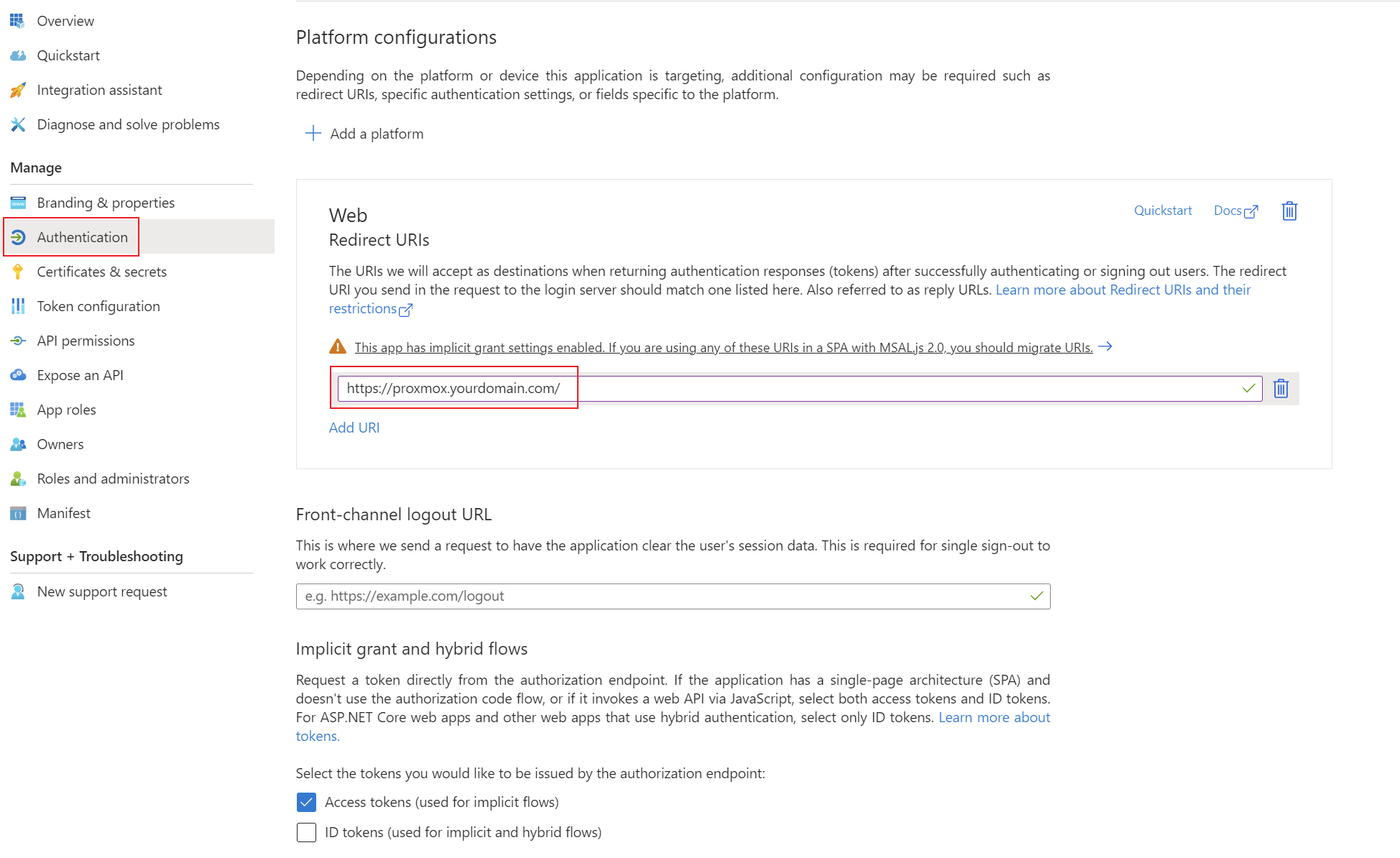
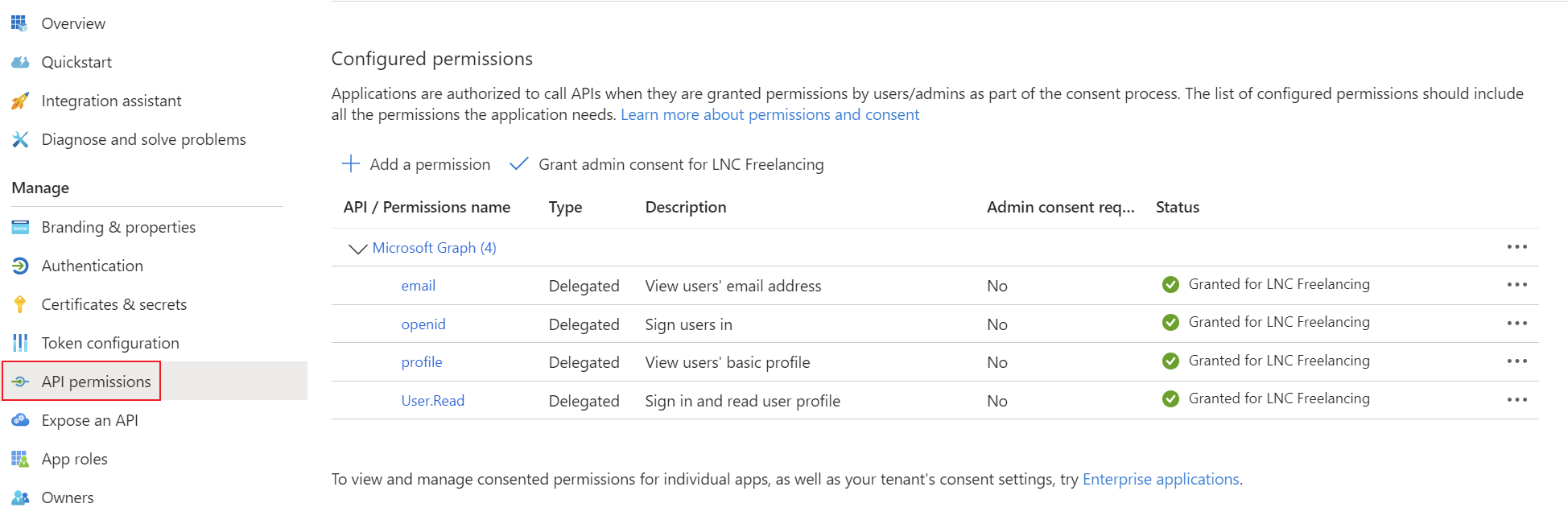
Add the Tenantcorresponding permissions for OpenID Connect as delegated permissions and grant admin consent for your tenant.
Create a client secret for the application and save the tenant ID, Clientapplication ID and Clientclient Secret.
Step 2: Add basic sign-in scopes
Typical scopes:
openidprofileemailUse group claims only if your authorizationpassword designmanager. requiresYou them.can find instructions for this information here: Get app details and grant permissions to app registration
Step
Setup 3:Microsoft CreateEntra the OIDC realmID in Proxmox
Realm
TypicalThis values:step requires the authentication details TenantID, ClientID, Client Secret from the first step.
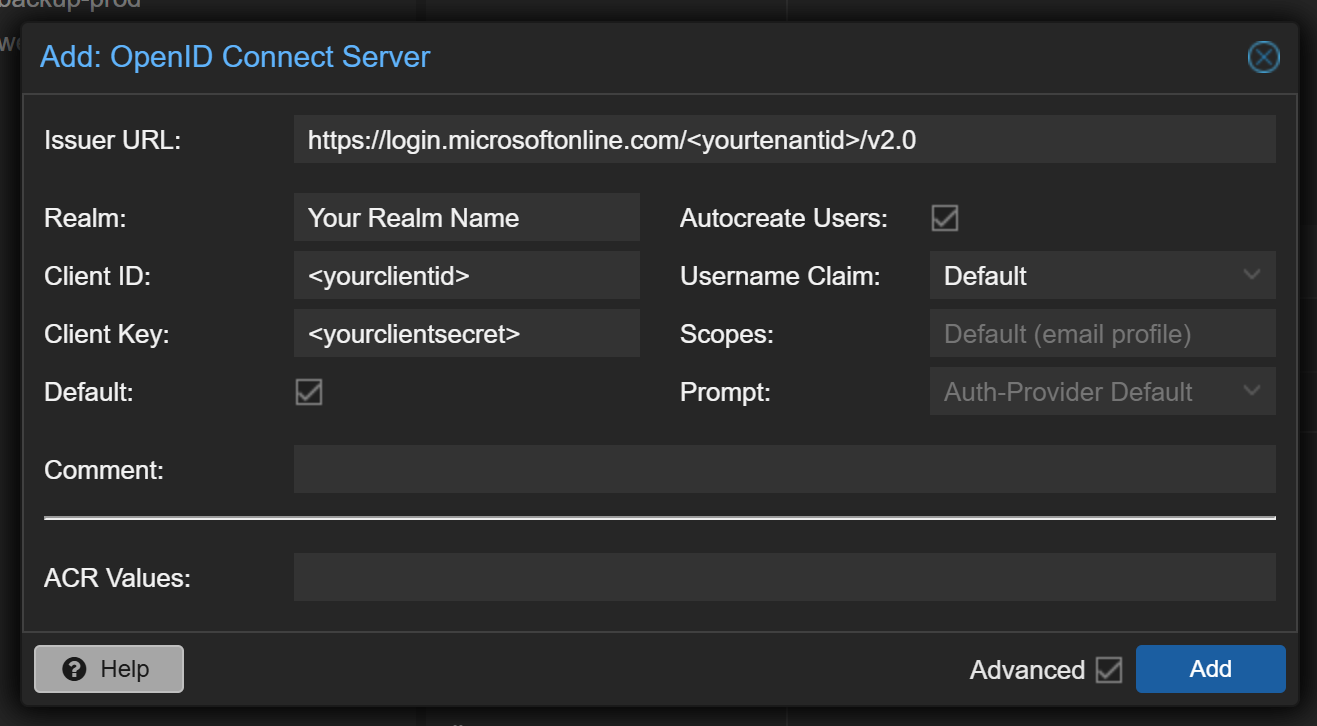
In the Proxmox web interface select "Datacenter" -> "Realms" -> "Add" -> "OpenID Connect Server". There you can enter the credentials from Microsoft Entra ID. Enter the information as described here: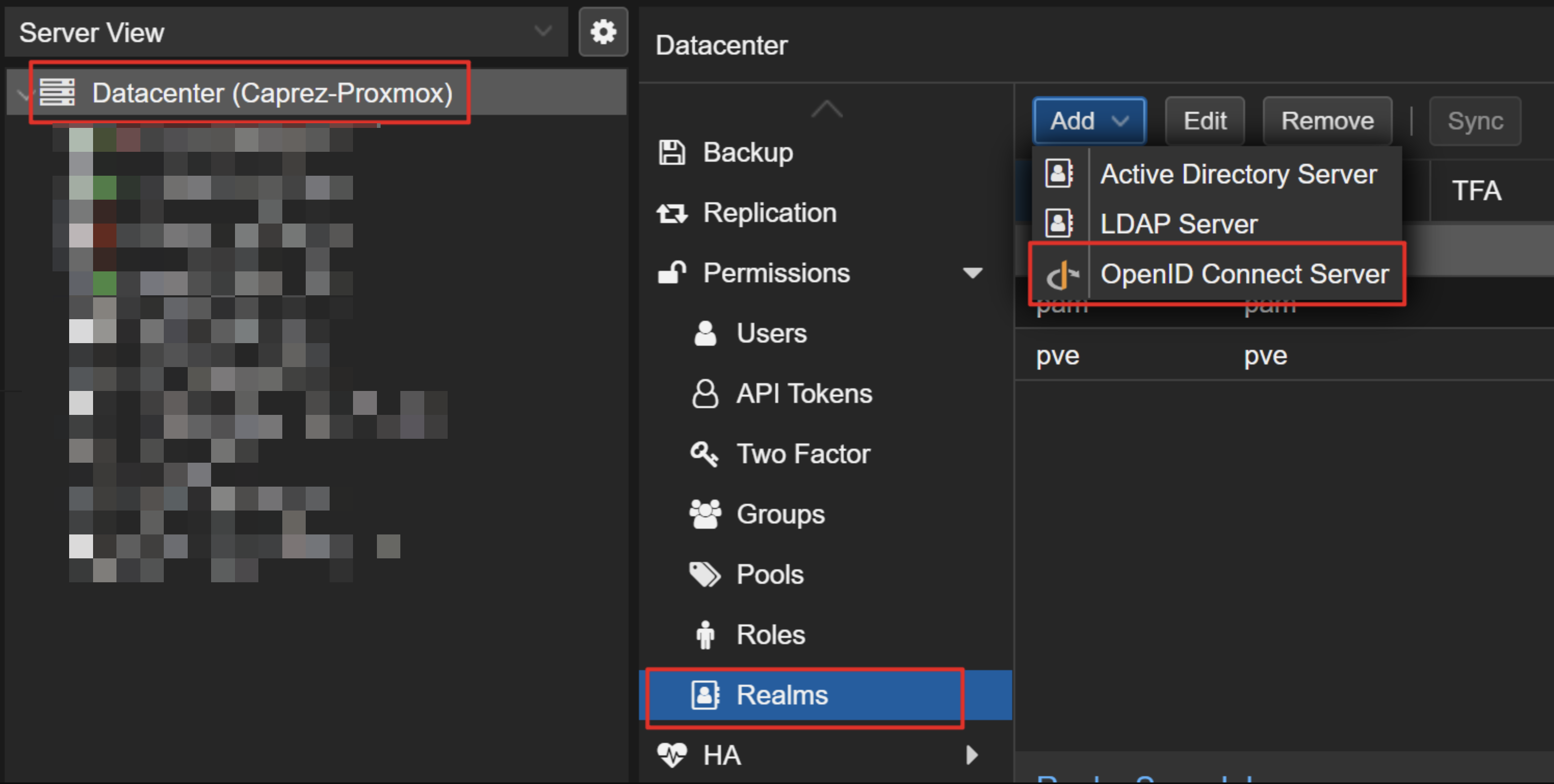
- Issuer URL:
https://login.microsoftonline.com/<tenant-idyourtenantid>/v2.0
Best practices
Summary
Microsoft Entra ID user object. The Access Token is requested with these scopes at login. The default values are usually sufficient.
Prompt: This setting defines which action ProxmoxAfter these settings are properly configured your users should be able to sign into Proxmox authorizationweb designinterface. After sign in the default grouping, role and apermissions testedmechanisms fallbackfrom adminProxmox path.take place.