Microsoft Entra ID SSO for Grafana
ThisPrerequisites: guide shows how to configure Grafana to use Microsoft Entra ID for single sign-on.
Why use Entra ID with Grafana
Benefits:
Prerequisites
These instructions describe how a Grafana Docker instance can be equipped with all the advantages of Single Sign On (SSO) using Microsoft Entra ID. Since there are different types of SSO, it is important to know that Grafana has many possibilities and offers granular, requirement-specific implementation options. For example, this means that automatic sign-up, role and user mapping, authentication scope and much more can be set.
Create App Registration
First, an app registration including client secret must be created in Microsoft Entra ID
StepID 1:to Createknow where to redirect the appuser registration
in Recommendedcase settings:of successful logins.
Platform:Authentication Type: Web- Redirect URIs:
https://<grafana-domain>/login/azuread
& https://<grafana-domain>/Record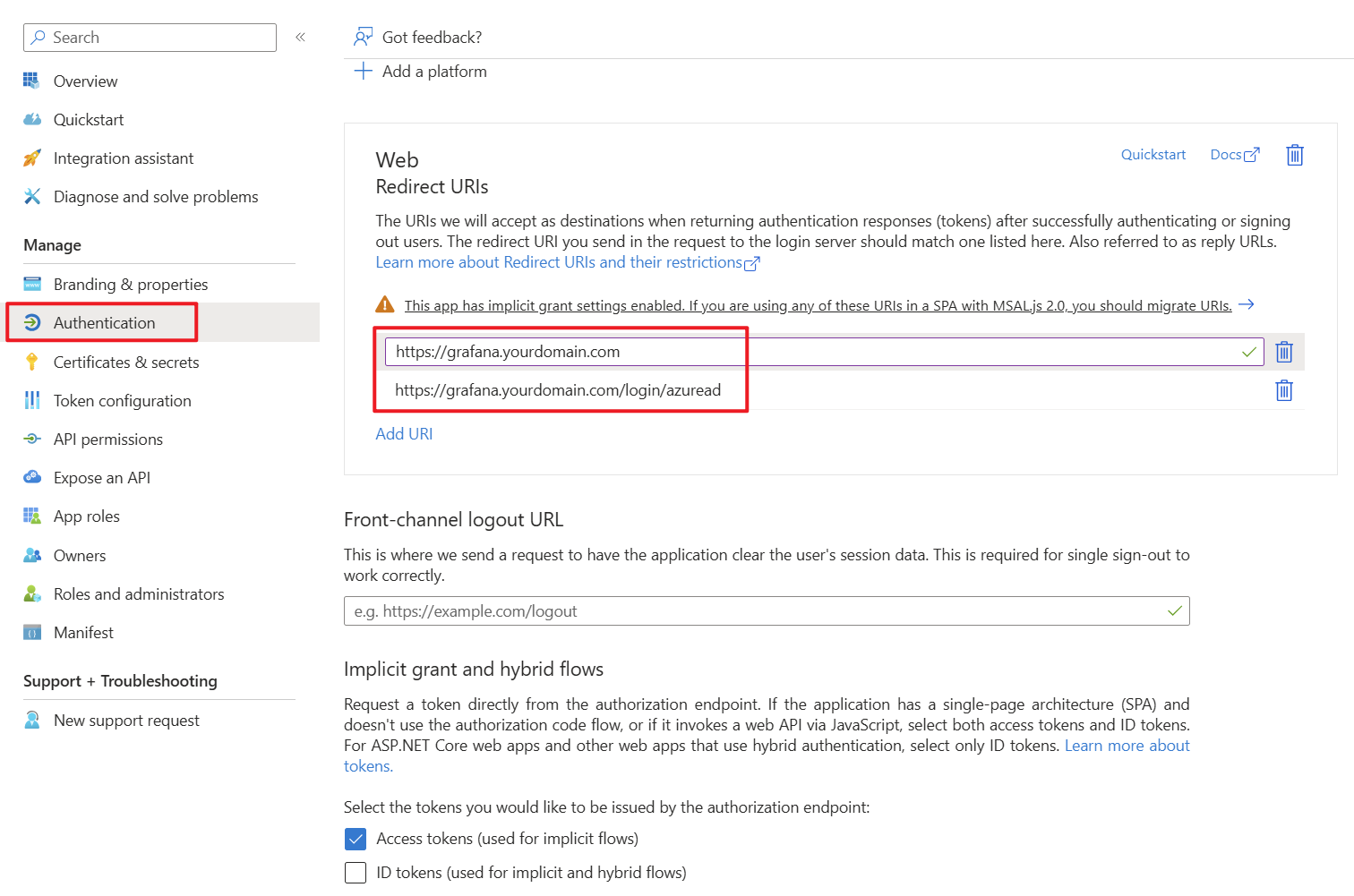
Add the Tenantcorresponding permissions for OpenID Connect as delegated permissions and grant admin consent for your tenant.
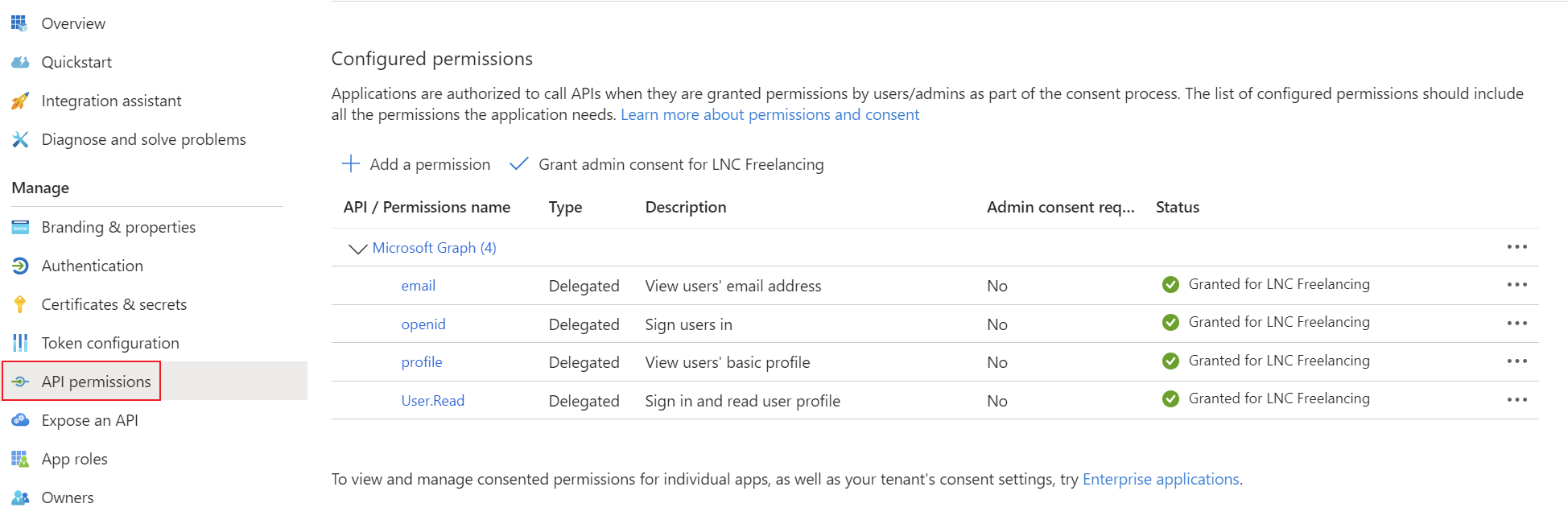
Create a client secret for the application and save the tenant ID, Clientapplication ID and Clientclient Secret.secret in your password manager. You can find instructions for this information here: Get app details and grant permissions to app registration
Step
Enable 2:authentication Addlogin required delegated permissions
provider
ForTo basicequip sign-in,Grafana with SSO options, the standardSSO OpenIDAPI Connectmust scopesbe areactivated sufficient:in the configuration file. To do this, the following file “/etc/grafana/grafana.ini” must be adapted. This file is normally saved in a persistent location. Create the document if it does not already exist and add the following configuration line:
[feature_toggles]
openidssoSettingsApi = true
profile
email
Step 3: Configure Grafana
InYou should then restart the Docker container or the application.
Check whether configuration was successful
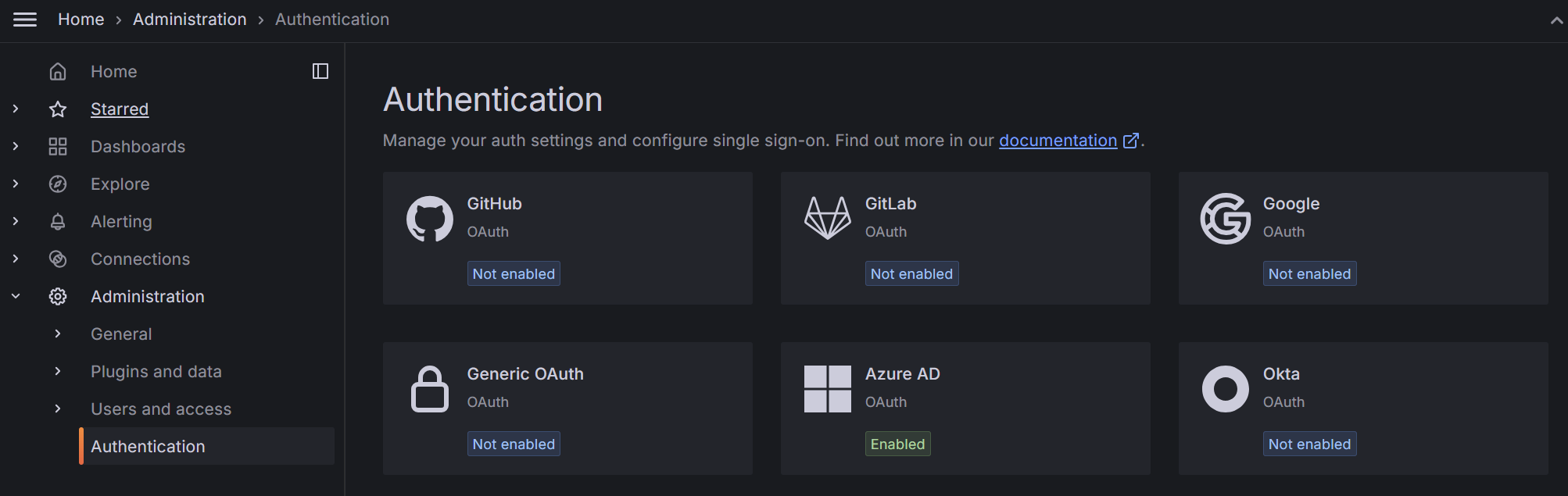
If everything is set up correctly, you can log in with the administrator account in the webgui of your Grafana goinstallation.
You should then be able to Administrationsee >the AuthenticationOAuth >providers supported by Grafana in the “Authentication” tab.
Setup Microsoft Entra ID andprovider
This step requires the authentication details TenantID, ClientID, Client Secret from the first step.
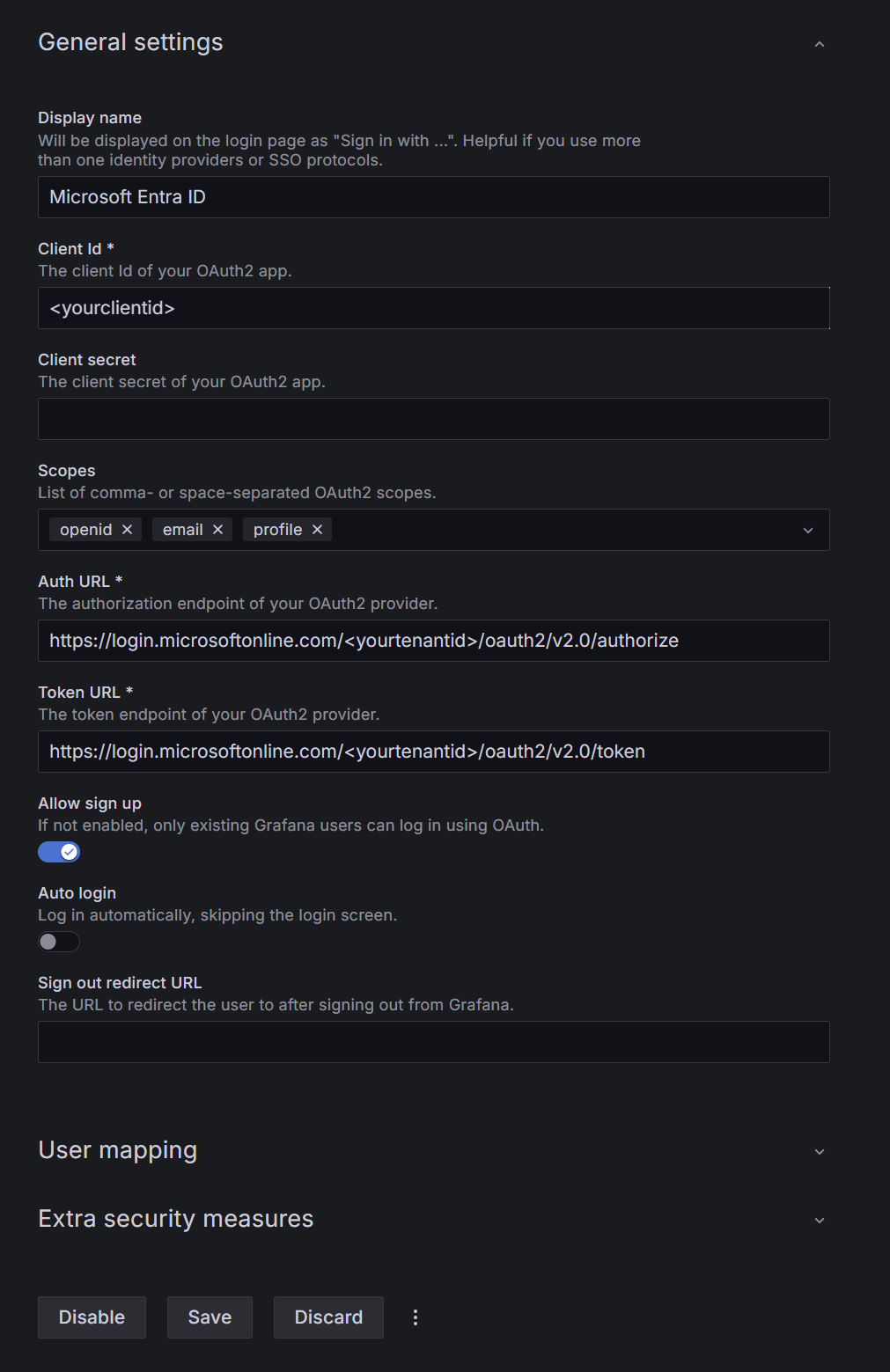
In the Grafana web interface select "Authentication" -> "Azure AD". There you can enter the credentials from Microsoft Entra ID. Enter the information as described here:
ClientDisplayIDName: Enter a name that will be displayed to the end user as a button when logging in.- Client
secretid: Enter your ClientID from the App Registration of your Microsoft Entra ID. - Client secret: Here you have to enter the Client Secret as passphrase.
Enter the following URL and fill your tenant id:
https://login.microsoftonline.com/<tenant-idyourtenantid>/oauth2/v2.0/authorize
Token URL: https://login.microsoftonline.com/<
openid email profileStepyour 4:users Optionalautomatically roleinto mapping
Grafana Forif enterprisethey use,have mapan Access Token for Microsoft Entra roles or groups to Grafana roles:
AppAfter rolesthese settings are usuallyproperly easierconfigured your users should be able to governsign thaninto broadGrafana. openFor signup.
Bestgranular practices
settings Summary
Grafana with Microsoft Entra ID is a strong enterprise SSO pattern when you combine a clean web app registration, correct redirect URIs, controlled provisioningmapping" and role"Extra mapping.security measures".