Microsoft Entra ID SSO for Grafana
Microsoft Entra ID SSO for Grafana
Prerequisites:This Abilityguide shows how to configure Grafana to use Microsoft Entra ID for single sign-on.
Why use Entra ID with Grafana
Benefits:
Prerequisites
These instructions describe how a Grafana Docker instance can be equipped with all the advantages of Single Sign On (SSO) using Microsoft Entra ID. Since there are different types of SSO, it is important to know that Grafana has many possibilities and offers granular, requirement-specific implementation options. For example, this means that automatic sign-up, role and user mapping, authentication scope and much more can be set.
Create App Registration
First, an app registration including client secret must be created in Microsoft Entra ID.ID
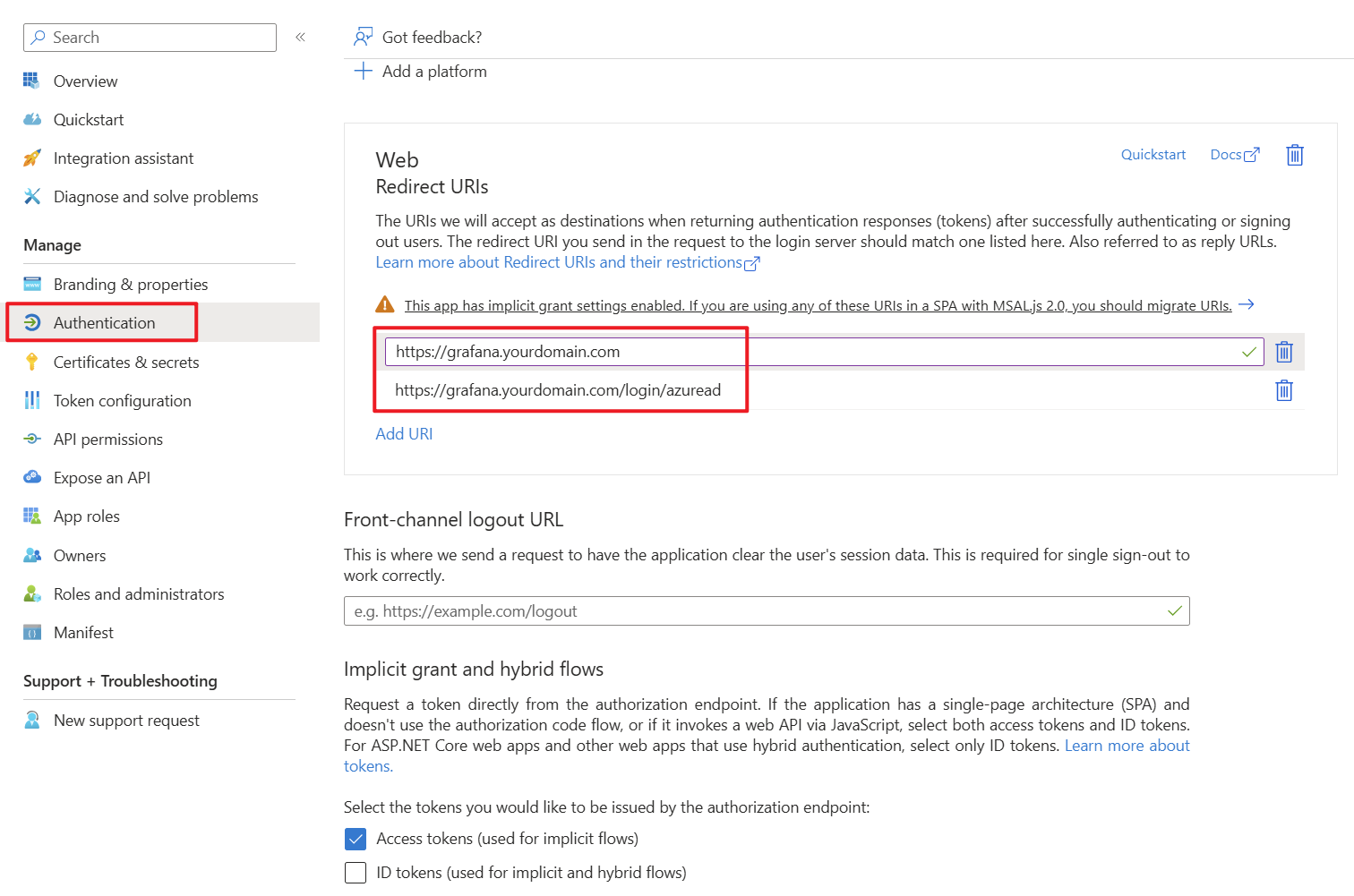
Step 1: Create the defaultapp values.registration
Recommended settingssettings:
https://<grafana-domain>/login/azuread
https://<grafana-domain>/
Record the Tenant ID, Client ID and Client Secret.
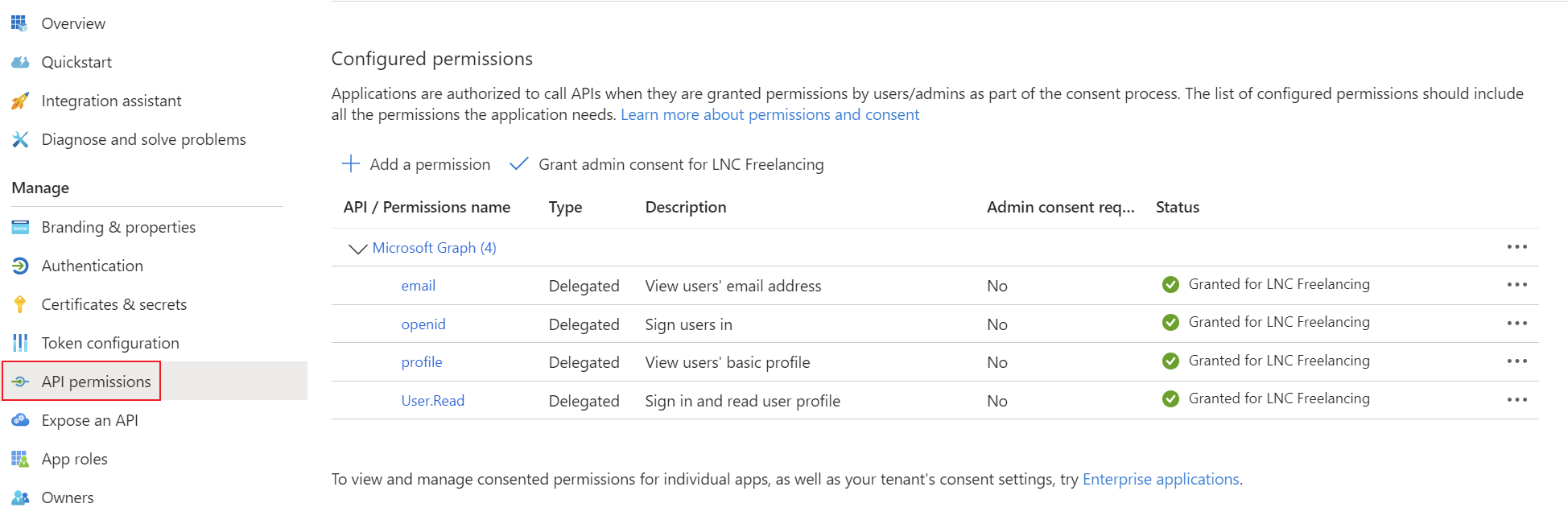
Step 2: Add required delegated permissions
For basic sign-in, the standard OpenID Connect scopes are thesufficient:
openid
profile
email
Step 3: Configure Grafana
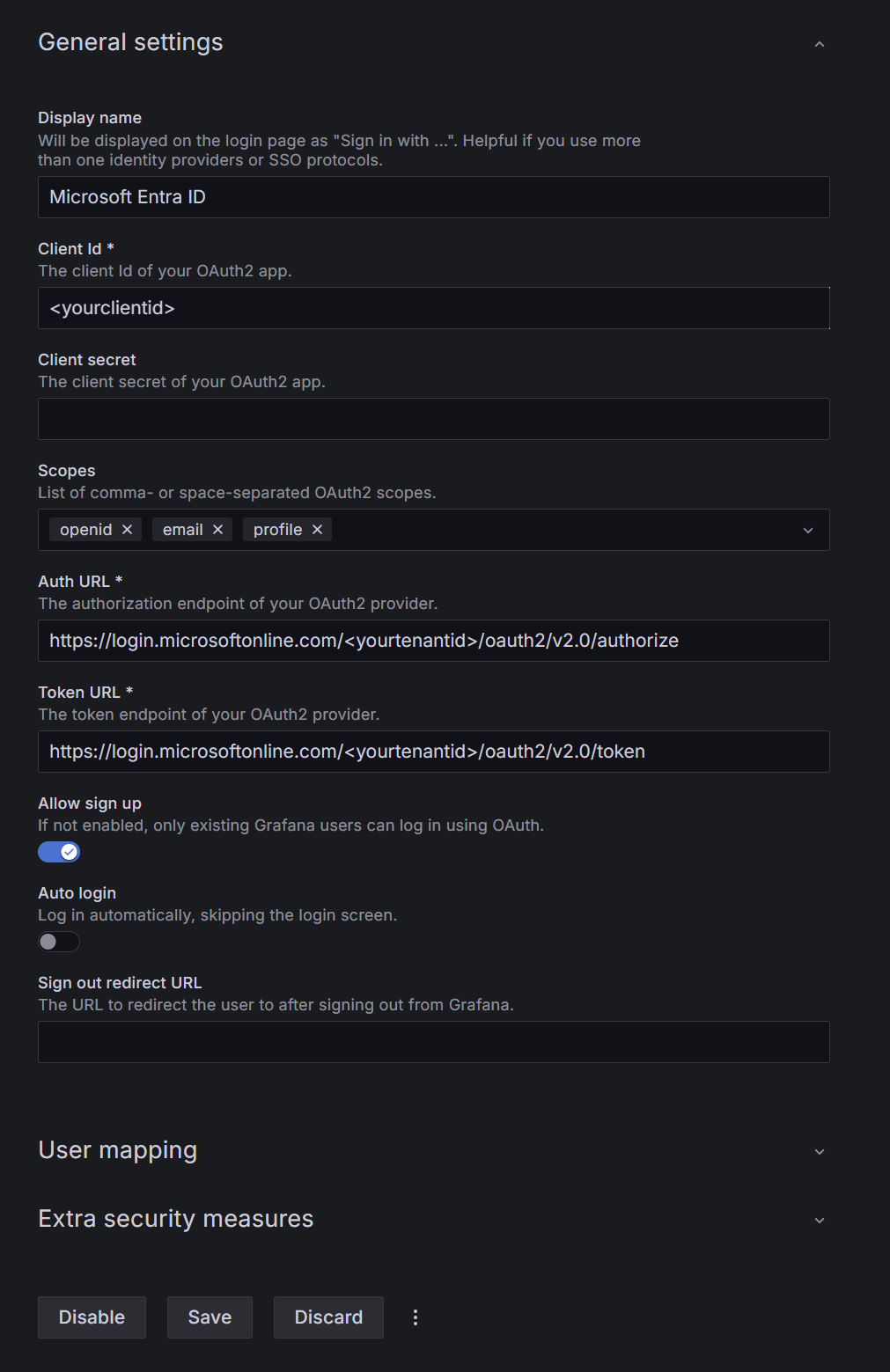
In Grafana go to Administration > Authentication tab.> SetMicrosoft theseEntra URIsID and configure:
https://login.microsoftonline.com/<tenant-id>/oauth2/v2.0/authorize
Token URL: https://login.microsoftonline.com/<tenant-id>/oauth2/v2.0/token
Scopes: openid email profile
Allow sign up: according to your Step 4: Optional role mapping
For enterprise use, map Entra roles or internalgroups domain on whichto Grafana isroles:
App roles are usually easier to govern than broad open signup.
Best practices
Summary
Grafana with Microsoft Entra ID tois knowa wherestrong toenterprise SSO pattern when you combine a clean web app registration, correct redirect theURIs, usercontrolled in case of successful logins.
Add the corresponding permissions for OpenID Connect as delegated permissionsprovisioning and grantrole admin consent for your tenant.mapping.
Create a client secret for the application and save the tenant ID, application ID and client secret in your password manager. You can find instructions for this information here: Get app details and grant permissions to app registration
Enable authentication login provider
To equip Grafana with SSO options, the SSO API must be activated in the configuration file. To do this, the following file “/etc/grafana/grafana.ini” must be adapted. This file is normally saved in a persistent location. Create the document if it does not already exist and add the following configuration line:
[feature_toggles]
ssoSettingsApi = true
You should then restart the Docker container or the application.
Check whether configuration was successful
If everything is set up correctly, you can log in with the administrator account in the webgui of your Grafana installation.
You should then be able to see the OAuth providers supported by Grafana in the “Authentication” tab.
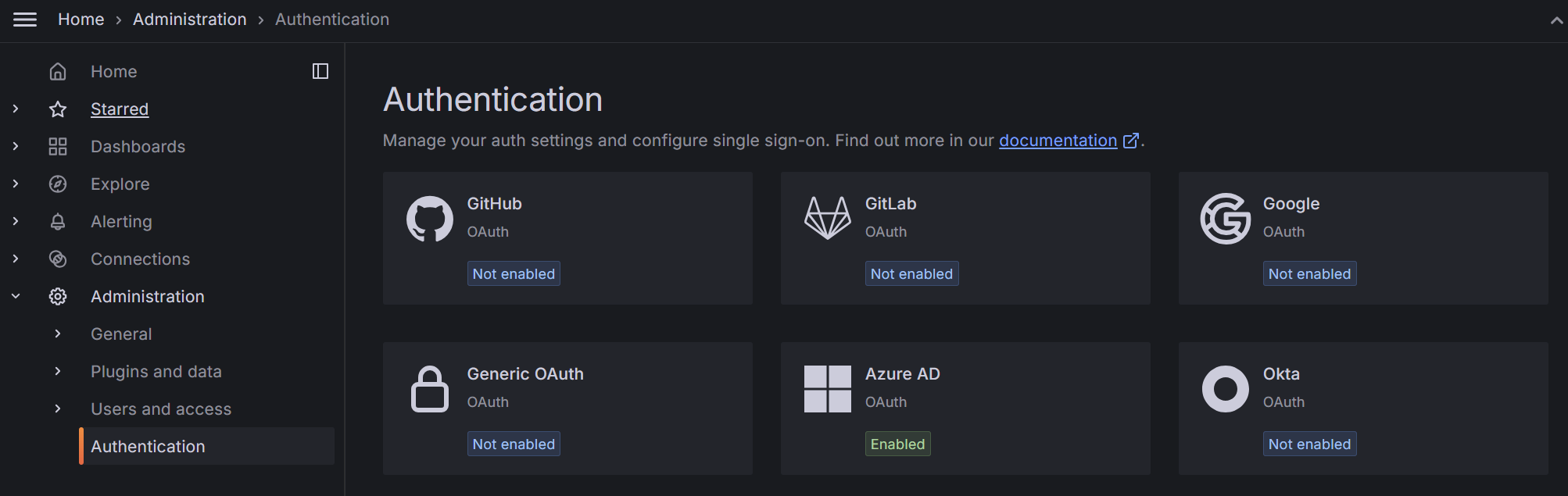
Setup Microsoft Entra ID provider
This step requires the authentication details TenantID, ClientID, Client Secret from the first step.
In the Grafana web interface select "Authentication" -> "Azure AD". There you can enter the credentials from Microsoft Entra ID. Enter the information as described here:
After these settings are properly configured your users should be able to sign into Grafana. For more granular settings and things like role mapping or default Grafana groups, change the settings under "User mapping" and "Extra security measures".