
Microsoft Entra ID SSO for Bookstack
Microsoft Entra ID SSO for Bookstack
This guide shows how to integrate BookStack with Microsoft Entra ID.
Note If BookStack is used as a larger enterprise documentation platform, evaluate whether generic
Prerequisites:OIDC or SAMLAbilityis the better long-term choice. The built-in AzureAD social login is simple, but not always the most flexible option.
When this approach fits
Use this guide if:
Prerequisites
.env file or container environment variables
permission to create an app registration Bookstack offers an OpenID interface, which means thatin Microsoft Entra ID
Step be1: used as an identity provider for managing access and permission within Bookstack. The functionalities are more limited than other integrations. However, simple functionalities such as automatic user creation and email verification can be customized.
This guide is a compilation ofCreate the main documentation of Bookstack: Third Party Authentication · BookStack (bookstackapp.com)
Create App Registration
First, an app registration
including
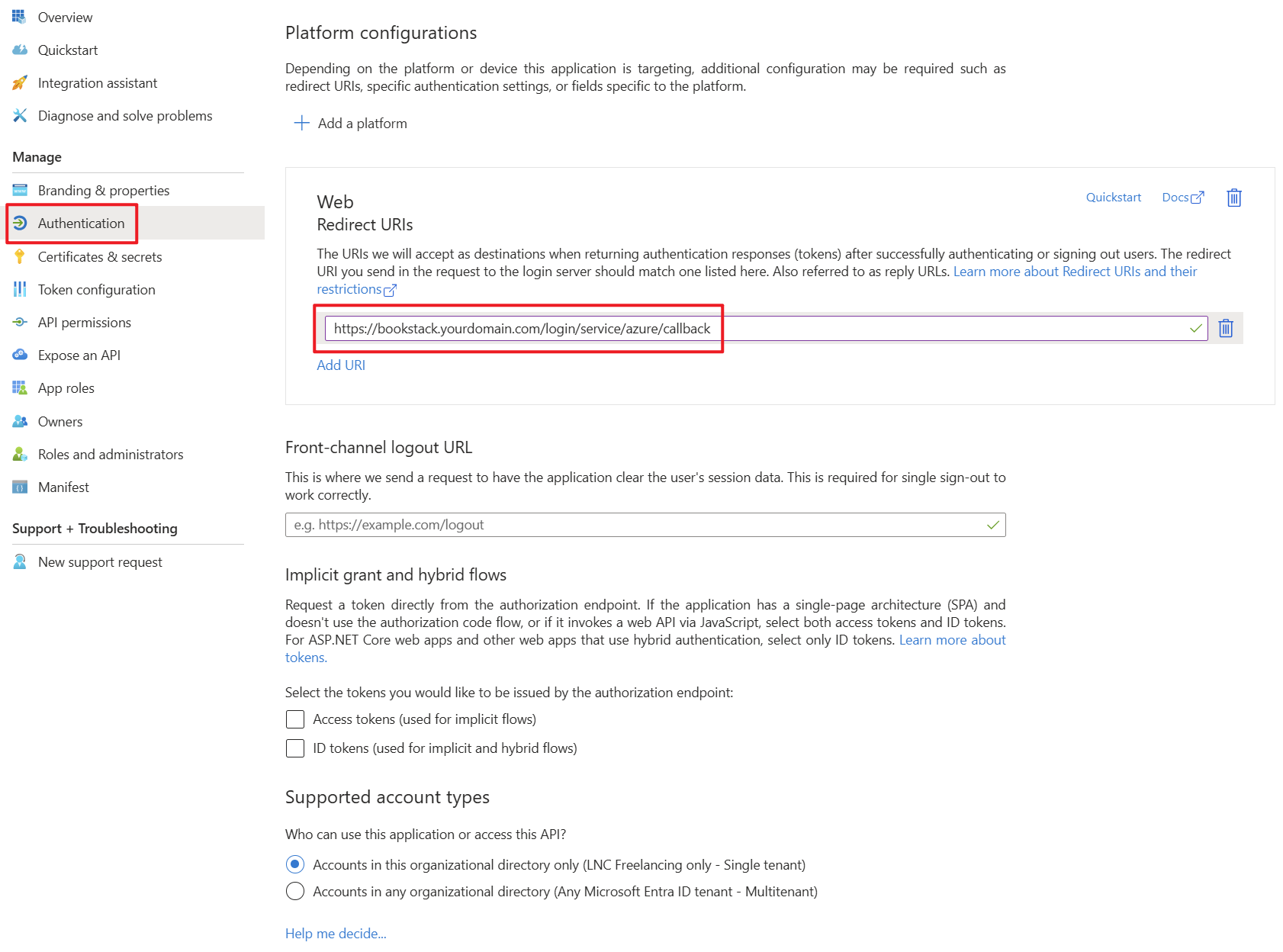
Recommended client secret must be created in Microsoft Entra ID. All settings can be left at the default values. Important settings are the Redirect URIs under the Authentication tab. Set these URIs to your external or internal domain on which Bookstack is available. These URIs will be used for Microsoft Entra ID to know where to redirect the user in case of successful logins.settings:
AuthenticationPlatform:Type:Web- Redirect
URIs:URI:https://bookstack.yourdomain.com/<bookstack-domain>/login/service/azure/callback
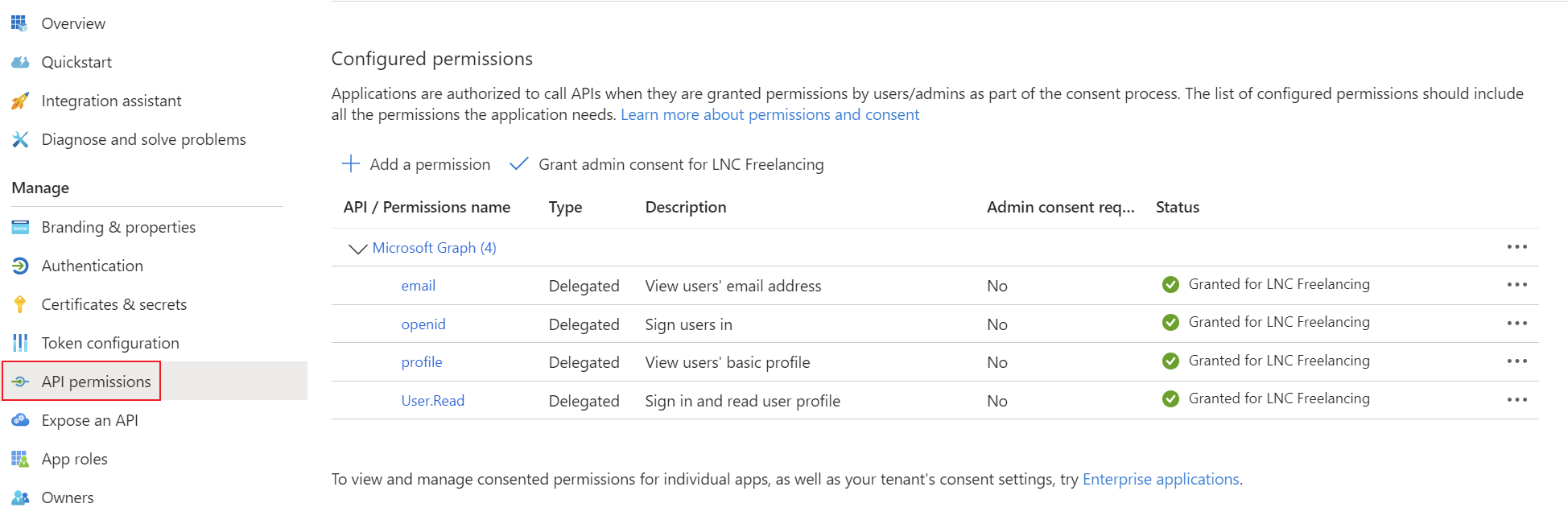
AddRecord the corresponding permissions for OpenID Connect as delegated permissions and grant admin consent for your tenant.
Create a client secret for the application and save the tenantApplication ID, applicationTenant ID and clientClient secretSecret.
Step 2: API permissions
For this login model, User.Read is typically sufficient.
Step 3: Configure BookStack
Add these variables to your passwordBookStack manager..env Youor cancontainer findconfiguration:
AZURE_APP_ID=<client-id>
forAZURE_APP_SECRET=<client-secret>
thisAZURE_TENANT=<tenant-id>
informationAZURE_AUTO_REGISTER=true
here:AZURE_AUTO_CONFIRM_EMAIL=true
GetBest detailspractices
Setupdedicated Microsoftto EntraBookStack
Withif Bookstack,onboarding the Microsoft Entra ID configurations canshould be setself-service
Summary
The relevantbuilt-in environmentAzure/Microsoft variableslogin in BookStack is a clean solution for OpenID are as follows:
Side note: As this type of configuration involves environment variables, these contents can also be transferred via the volume as an .env file, specified with a simple startupinternal commandSSO. For more advanced enterprise access models, evaluate OIDC or specified in another declarative context (Kubernetes manifest, Terraform, etc.).SAML.
Docker compose example
This Docker Compose file shows a possible configuration for Bookstack that authenticates using Microsoft Entra ID. In addition, the database container and mail settings are also specified.
Customize this content with your specifications and save the content in a normal docker-compose.yaml file. As this is Docker Compose, the application can be started easily with the following command (in detach mode -> -d):
docker compose up -dversion: "3"
services:
<yourbookstackcontainername>:
image: lscr.io/linuxserver/bookstack
container_name: <yourbookstackcontainername>
environment:
- PUID=1000
- PGID=1000
- APP_URL=https://<yourbookstackdomain>
- DB_HOST=<yourmariadbcontainername>
- DB_USER=<yourdbuser>
- DB_PASS=<yourdbpassword>
- DB_DATABASE=<yourdbname>
- MAIL_HOST=<yourmailserver>
- MAIL_PORT=587
- MAIL_FROM_NAME=<yourmailname>
- MAIL_FROM=<yoursmtpmail>
- MAIL_USERNAME=<yoursmtpmailuser>
- MAIL_PASSWORD=<yoursmtpmailpassword>
- AZURE_APP_ID=<yourclientid>
- AZURE_APP_SECRET=<yourclientsecret>
- AZURE_TENANT=<yourtenantid>
- AZURE_AUTO_REGISTER=true
- AZURE_AUTO_CONFIRM_EMAIL=true
volumes:
- <yourpersistentpathforbookstack>:/config
ports:
- 6875:80
restart: unless-stopped
depends_on:
- <yourmariadbcontainername>
<yourmariadbcontainername>:
image: lscr.io/linuxserver/mariadb
container_name: <yourmariadbcontainername>
environment:
- PUID=1000
- PGID=1000
- MYSQL_ROOT_PASSWORD=<yourdbrootpassword>
- TZ=<yourtimezone>
- MYSQL_DATABASE=<yourdbname>
- MYSQL_USER=<yourdbuser>
- MYSQL_PASSWORD=<yourdbpassword>
volumes:
- <yourpersistentpathformariadb>:/config
restart: unless-stopped