
Setup passkeys as MFA method for password less sign in
To register and use passkeys your IT provider has to enable and configure the option for your environment.
This guide helpsis intended for end users registerand is not intended as a passkeyguide for theirsetting up passkeys for IT administrators.
Read this guide carefully and follow the steps exactly as documented if you want to get rid of your Microsoft account password and increase security.
What is password less & phishing-resistant MFA
Passwordless MFA eliminates the need for traditional passwords by using methods like biometrics (e.g., fingerprints) or hardware tokens. This approach enhances security and user convenience.
Phishing-resistant MFA adds an extra layer of protection by ensuring that authentication methods are resistant to phishing attacks. It often involves using hardware tokens or biometric verification, making it much harder for attackers to impersonate users.
Both methods can be combined in Microsoft Account products. Your administrator can configure so called passkeys to achieve both passwordless & phishing-resistant MFA with one solution.
This guide walks you through the setup process of passkeys using Android or IOS devices and your Microsoft work or school account.
It is written for users, not tenant administrators.
What is a passkey
A passkey is a phishing-resistant authentication method based on FIDO2 standards. Depending on your organization's policy, the passkey can be:
Prerequisites
storedManagedinMicrosoft Authenticator
Before you begin
You need:
Recommended
Setup sign-process
The setup process consists of two steps. We need a Browser where we are already signed in portalusing our Microsoft Account and also a mobile phone. So keep the devices ready and follow the guide based on your user account state and OS preference.
Use:Existing user account
New user account
Open your work browser and sign in to https://mysignins.microsoft.com and go to "Security info".
Sign in for the first time using the provided information. Most likely mail address, temporary access pass (TAP) and/or password.
Change password manager to Microsoft Authenticator (once)
Android
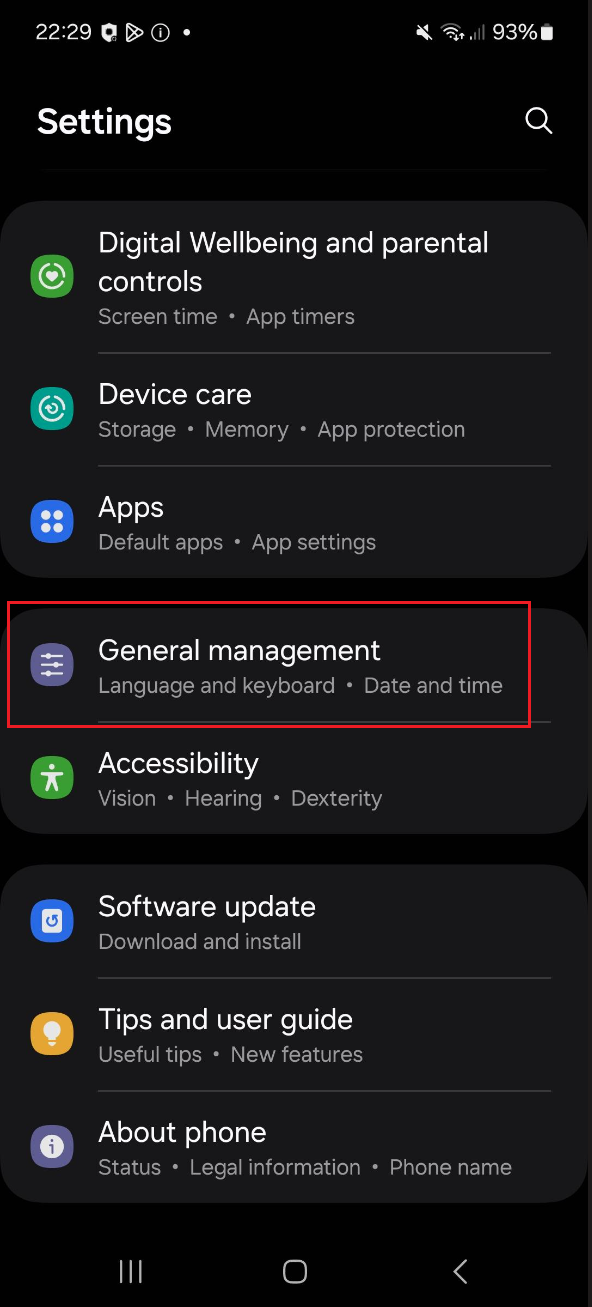
IOSOpen settings app and choose "General management":
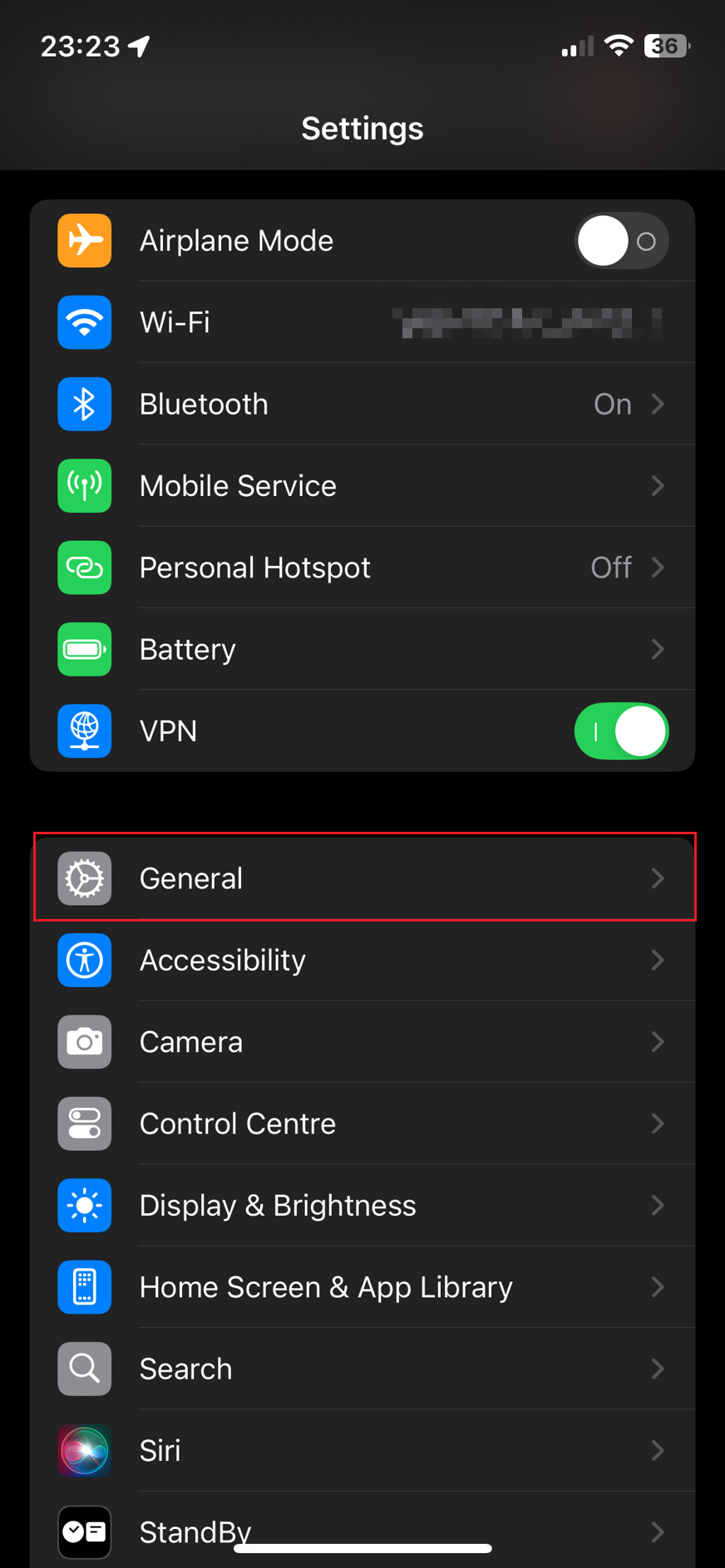
Open settings app and choose "General":
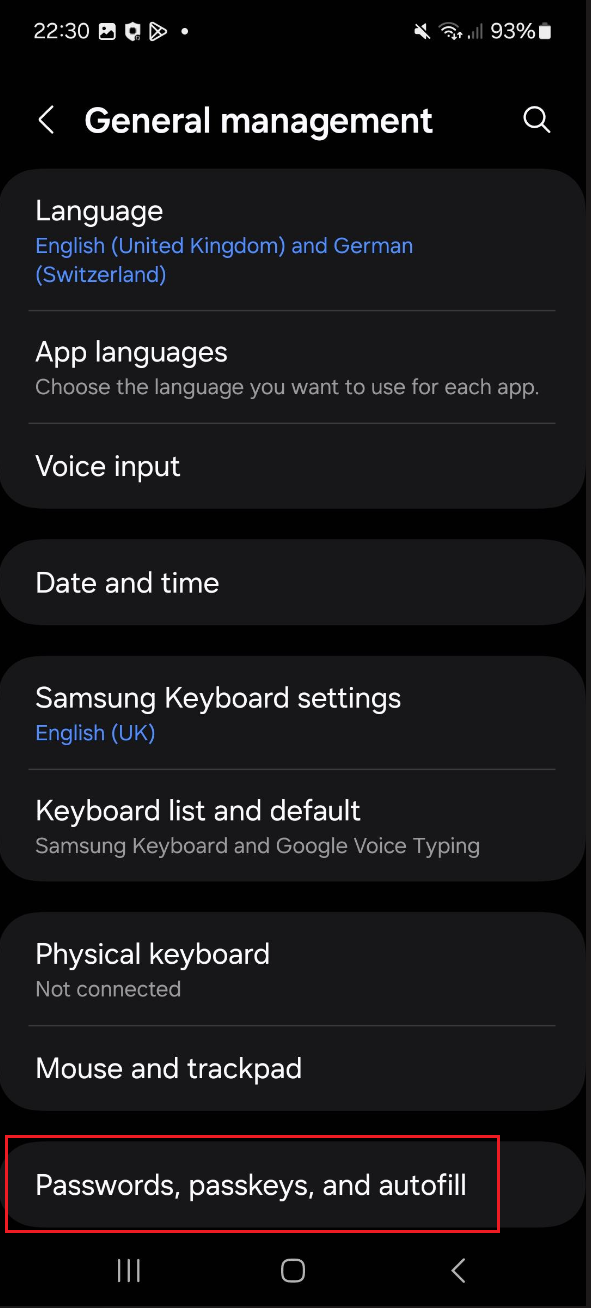
Go to "Passwords, passkeys, and autofill":
Head to "Autofill & Passwords":
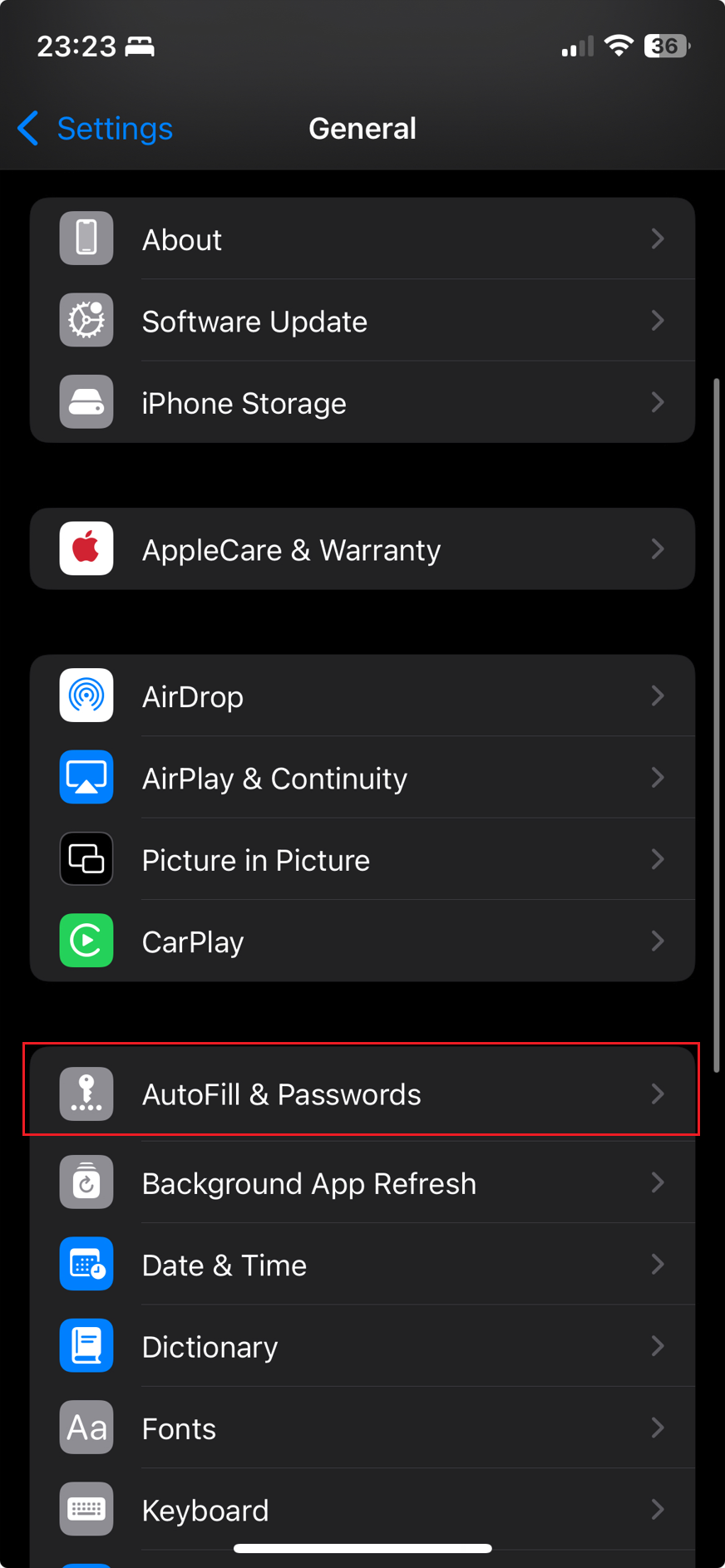
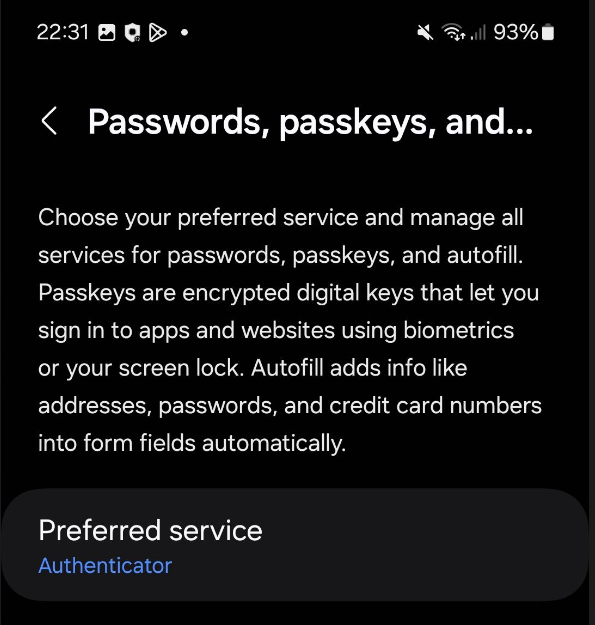
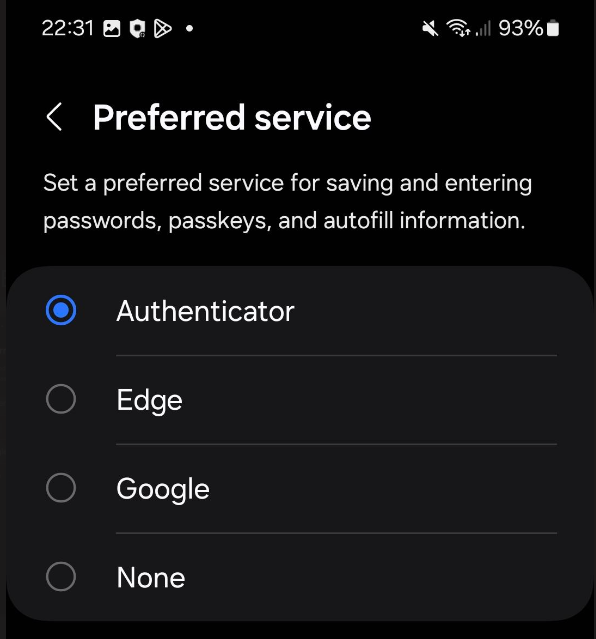
Make sure that the "preferred service" is Authenticator. Otherwise you can click on this switch area and select "Authenticator":
Change "Set up Codes in" to Authenticator. Make sure that you have "Authenticator" on top enabled as well:
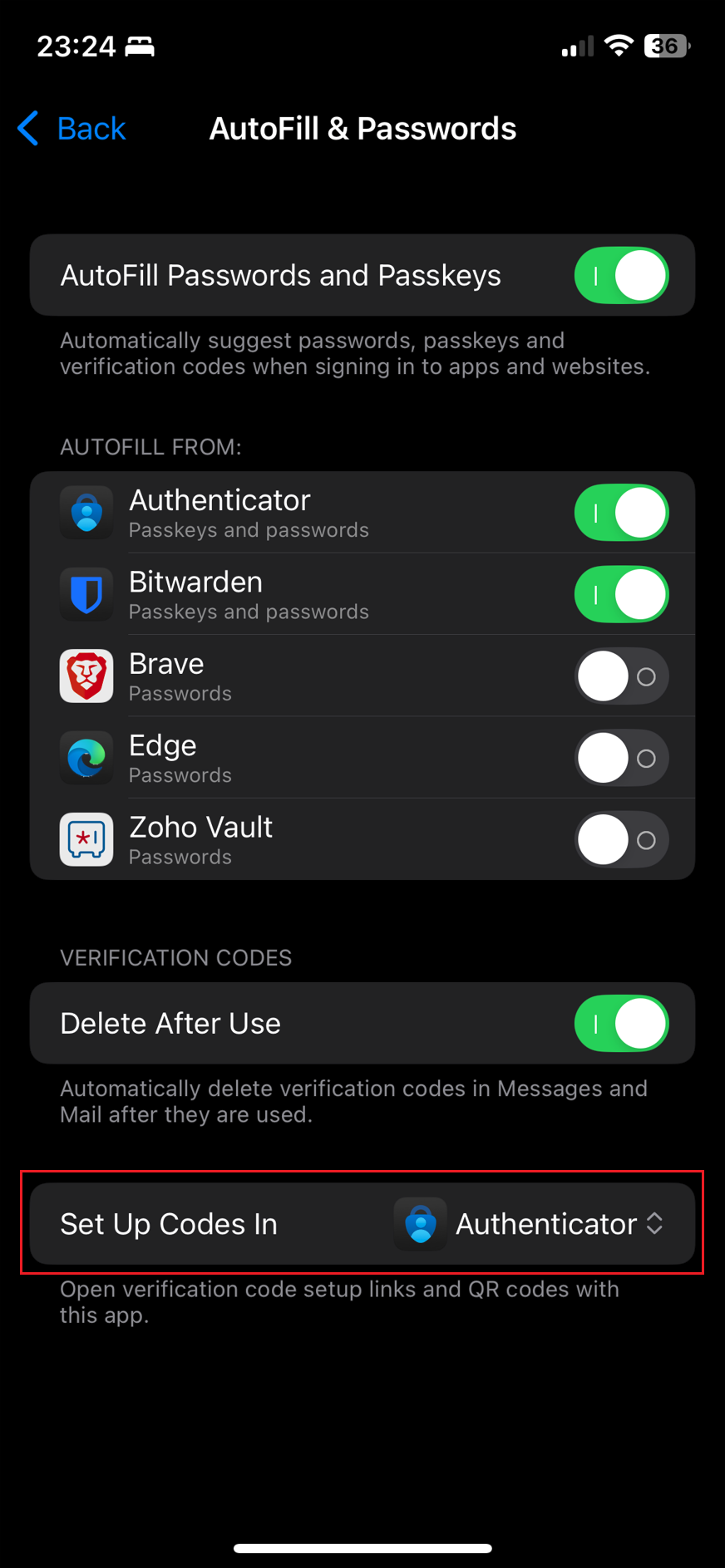
Important note for below IOS 18
Unfortunately, iOS currently only supports one active third-party password manager. This means that if you use a password manager other than the integrated one, you must change it to Microsoft Authenticator for the passkeys to work correctly.
Setup passkeys for signed in Authenticator use case
If you want to setup passkeys without sign in on your mobile phone use this guide: Setup passkeys for not signed in uses
You must been signed in on your mobile phones Authenticator app to continue with the next steps.
You can now get back to your desktops browser window and continue this guide to setup the authentication method.
On https://mysignins.microsoft.com switch to "security info" tab and click "add sign-in method" to add new authentication method.
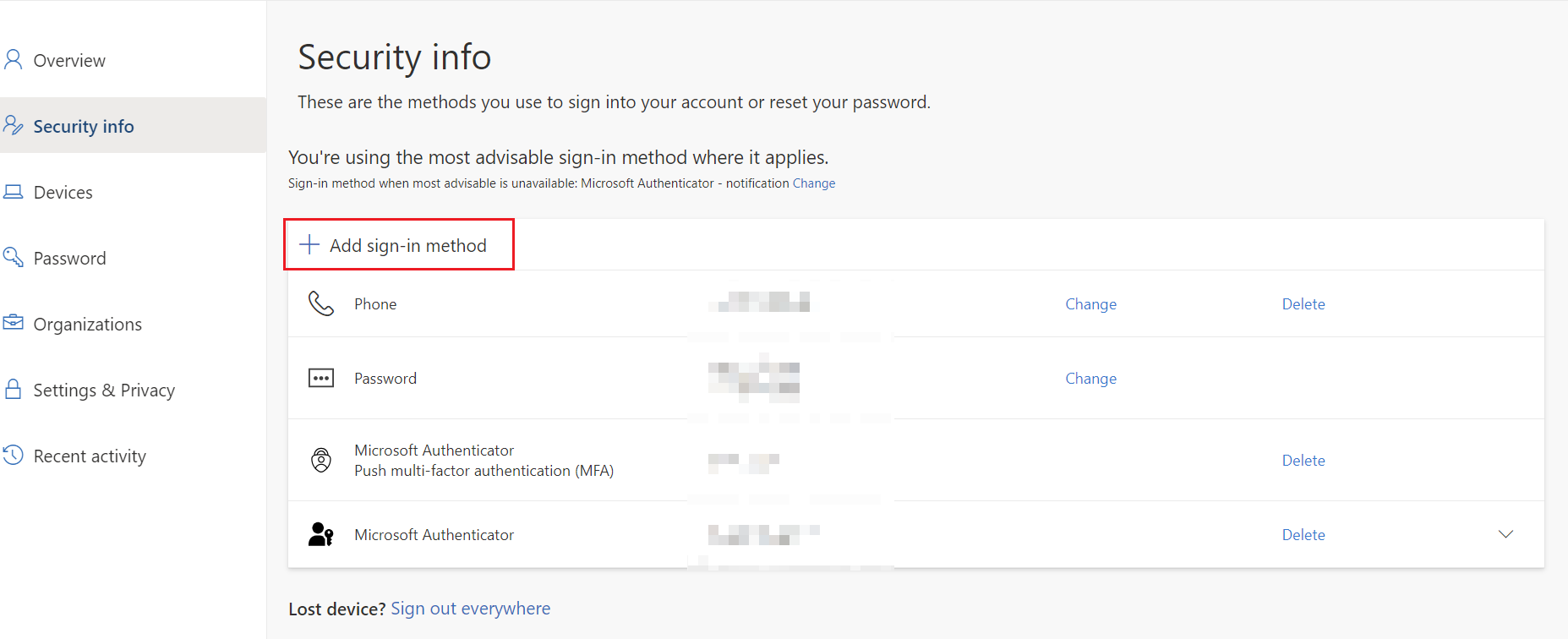
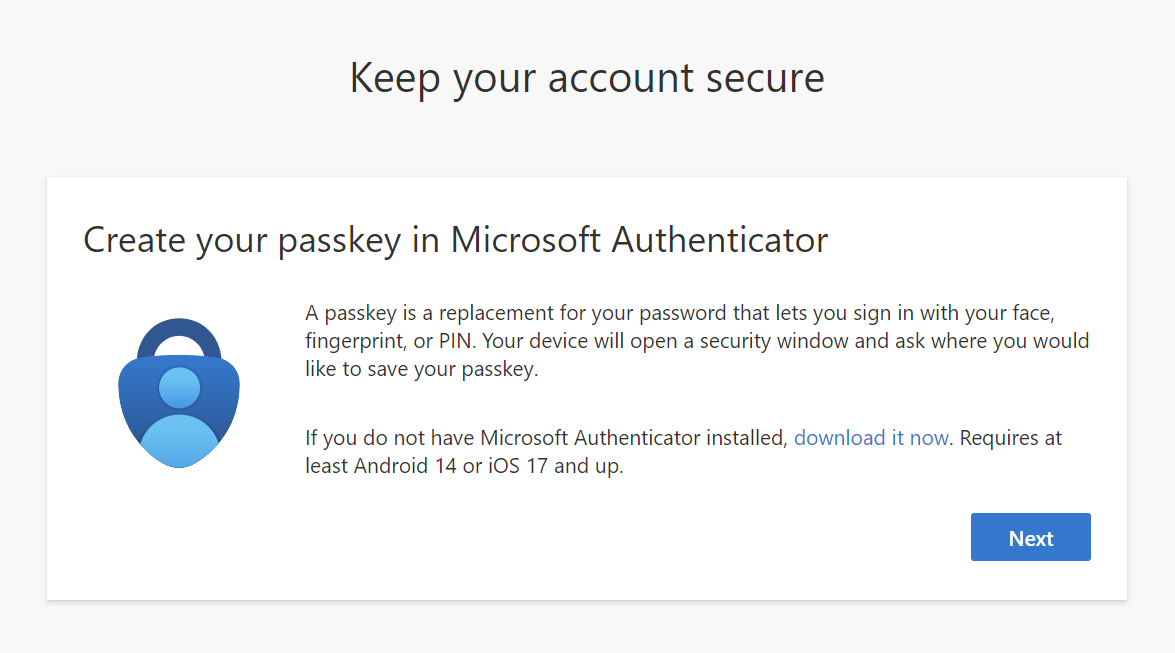
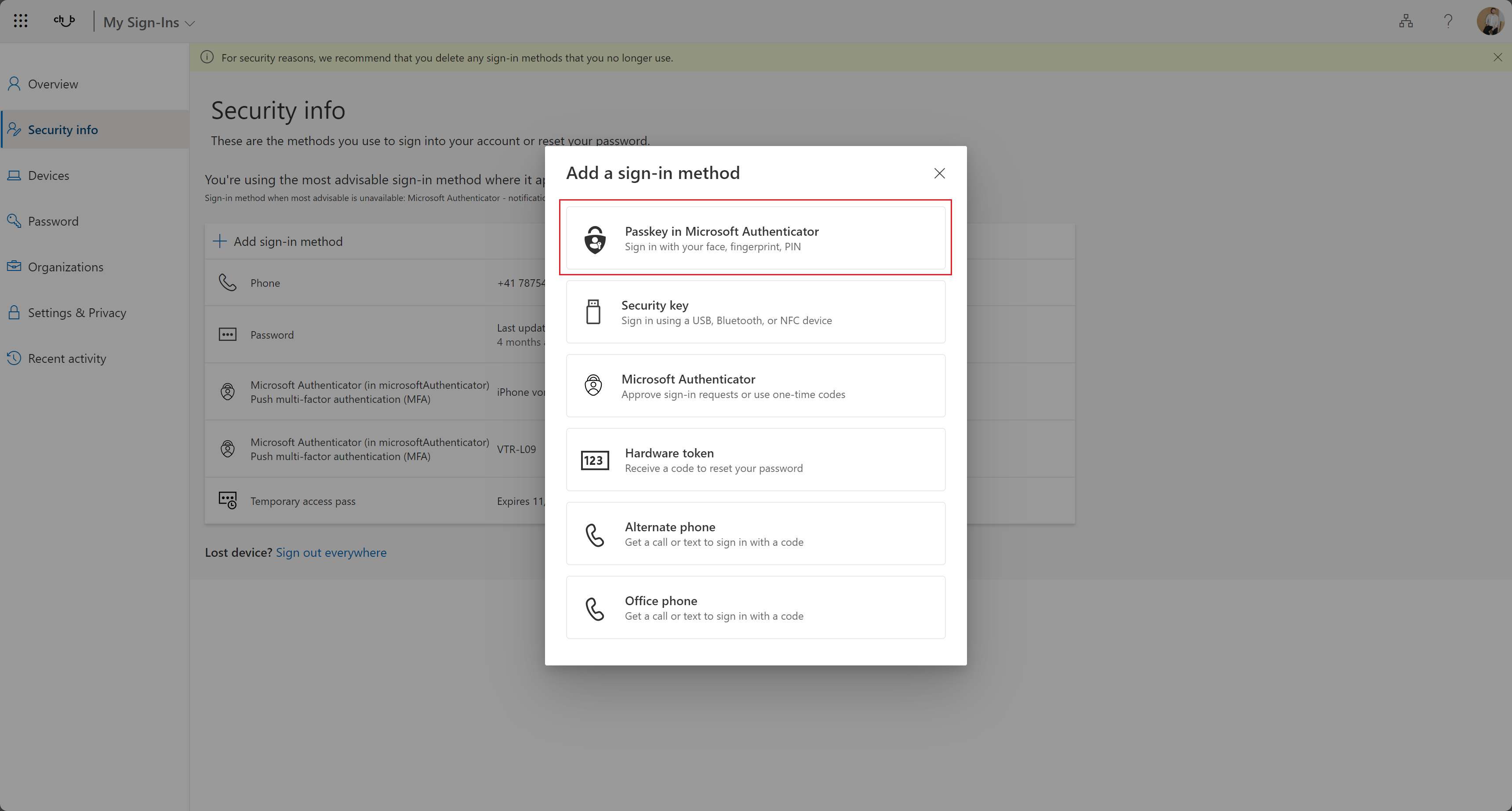
Then openselect Security"Passkey infoin Microsoft Authenticator" and click "Add".
Typical
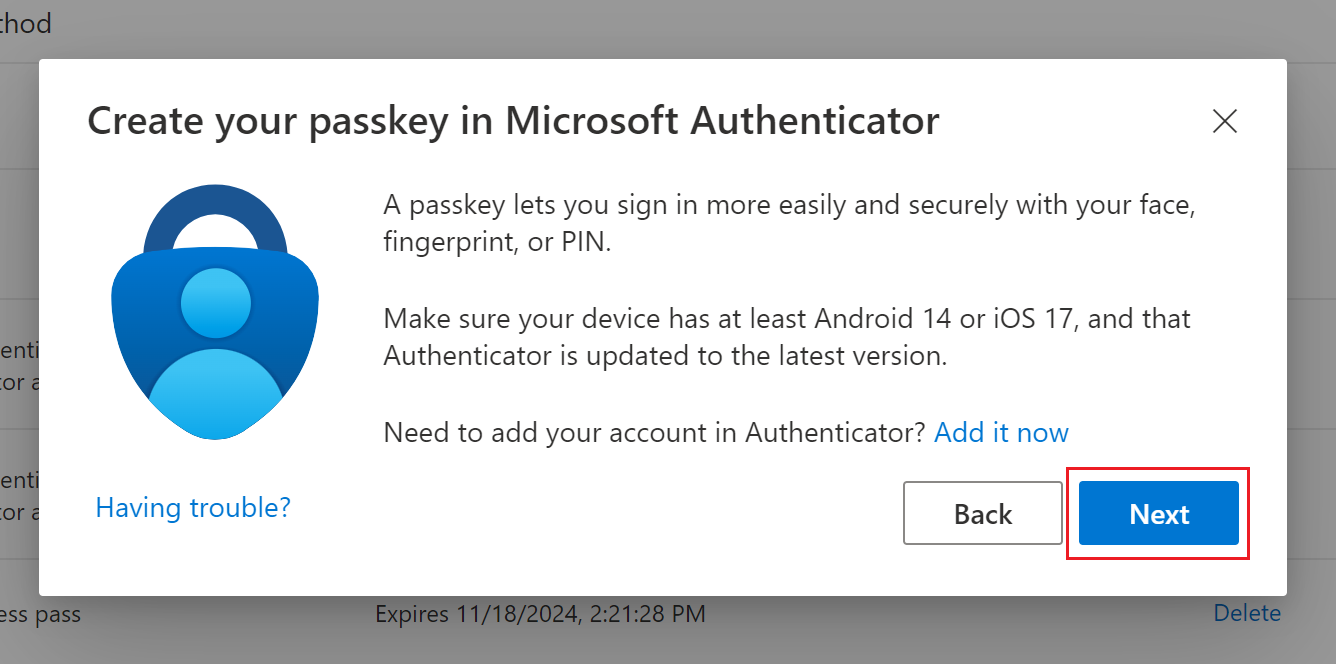
Click "Next" on the info about minimal requirements for your phone.
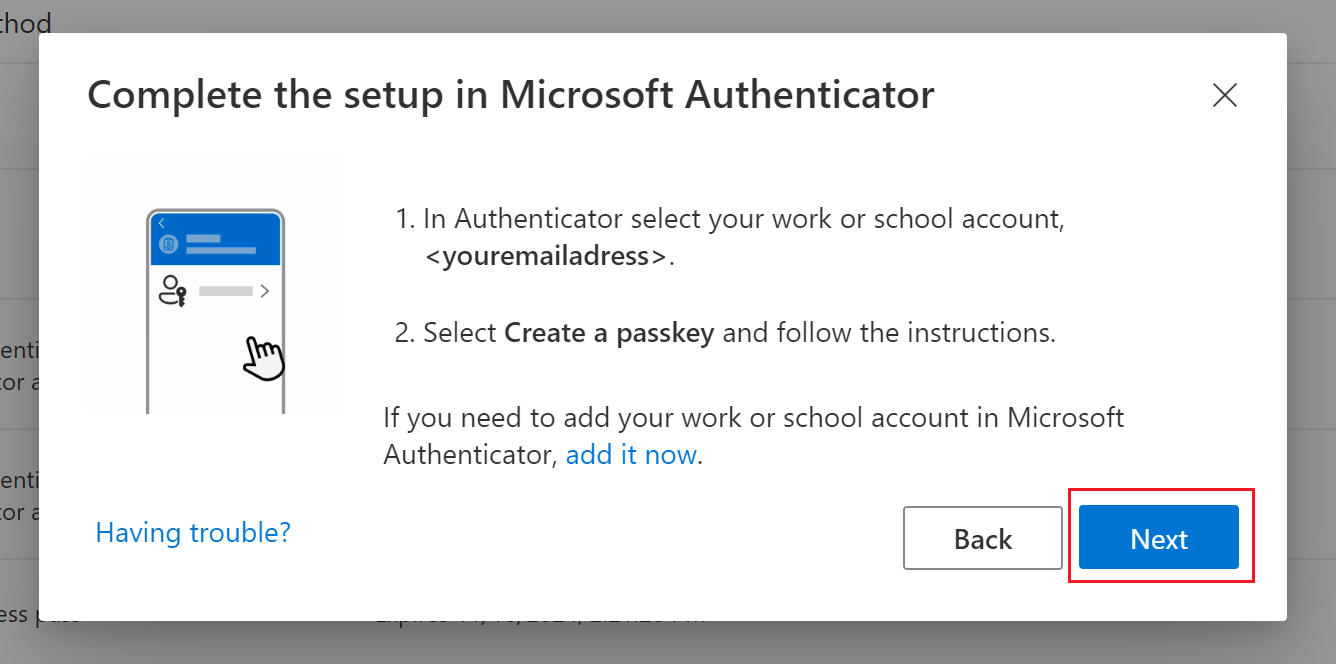
Open Microsoft Authenticator app on your phone and click on the account you want to setup your passkey.
Look into the next chapter to find the manual for setup.
After finishing the next chapter, click "Next".
Switch to your mobile phone and open Authenticator app.
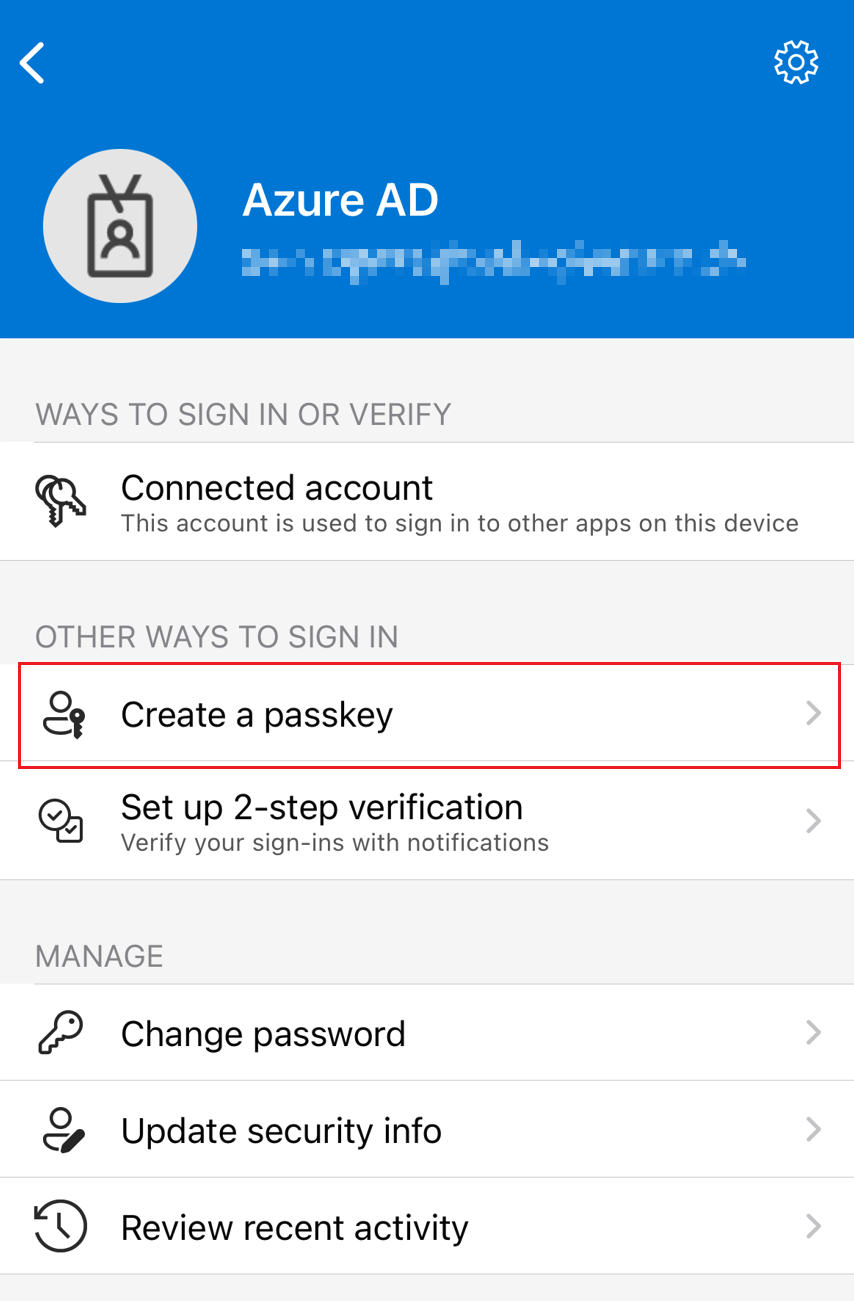
Click on "Create a passkey (preview)".
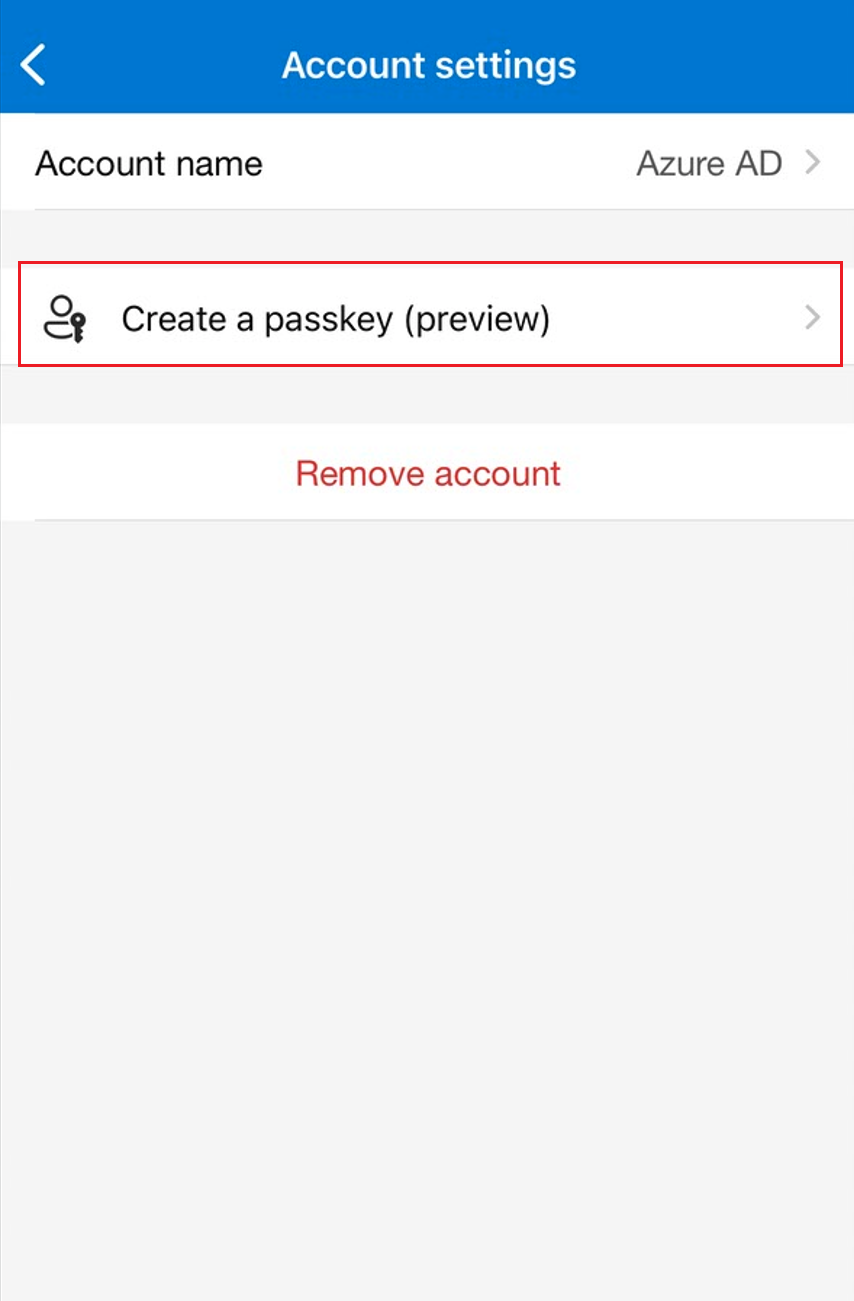
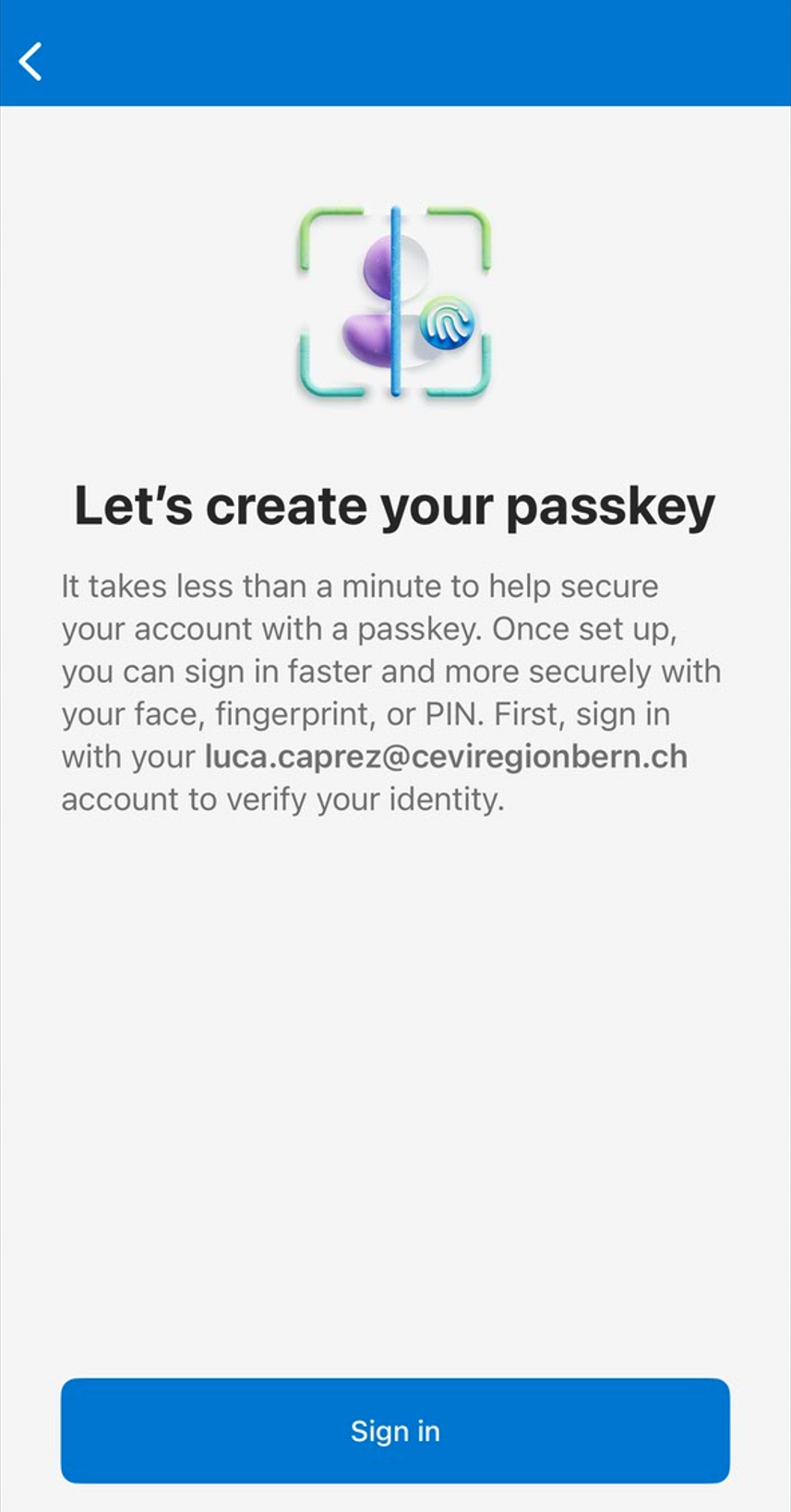
On the next screen click on "Sign in". Now you get prompted to sign in with your account again.
After you successfully sign in, the passkey gets created and you can use it (see next chapter).
Setup passkeys for not signed in uses
If you want to setup passkeys using the new flow
You can now get back to your desktops browser window and continue this guide to setup the authentication method.
On https://mysignins.microsoft.com switch to "security info" tab and click "add sign-in methodmethod"
Then select "Passkey in Microsoft Authenticator" and click "Add".
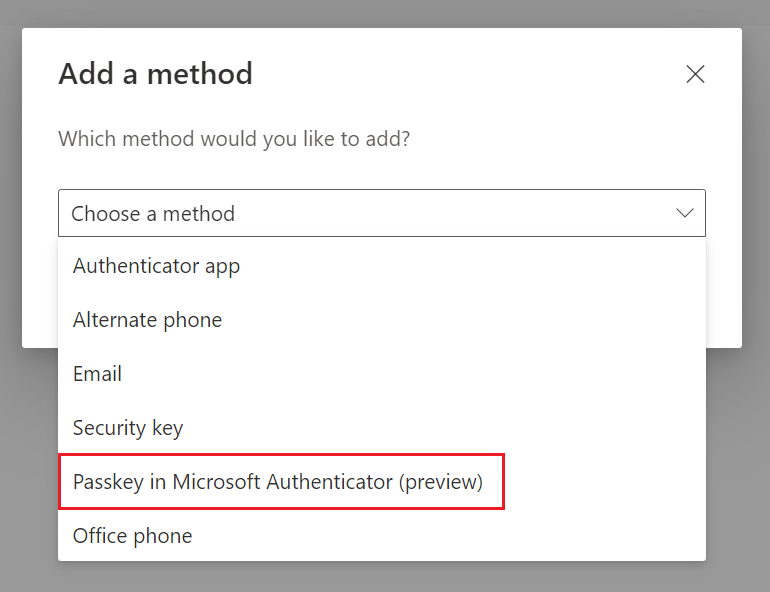
Then you have to select the OS of your mobile phone.
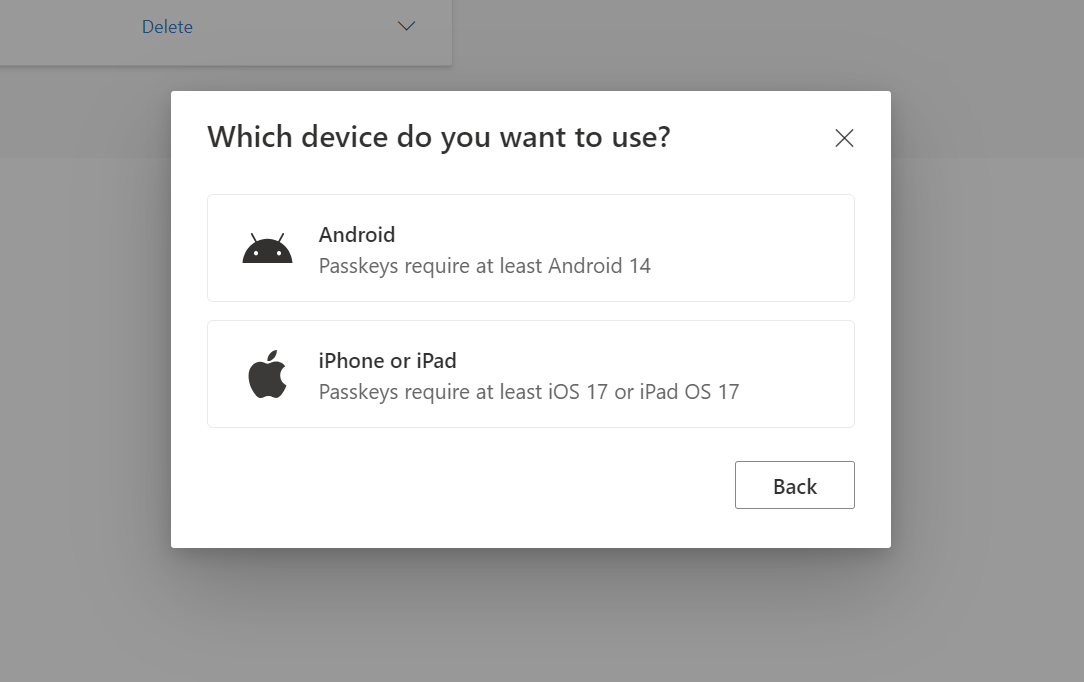
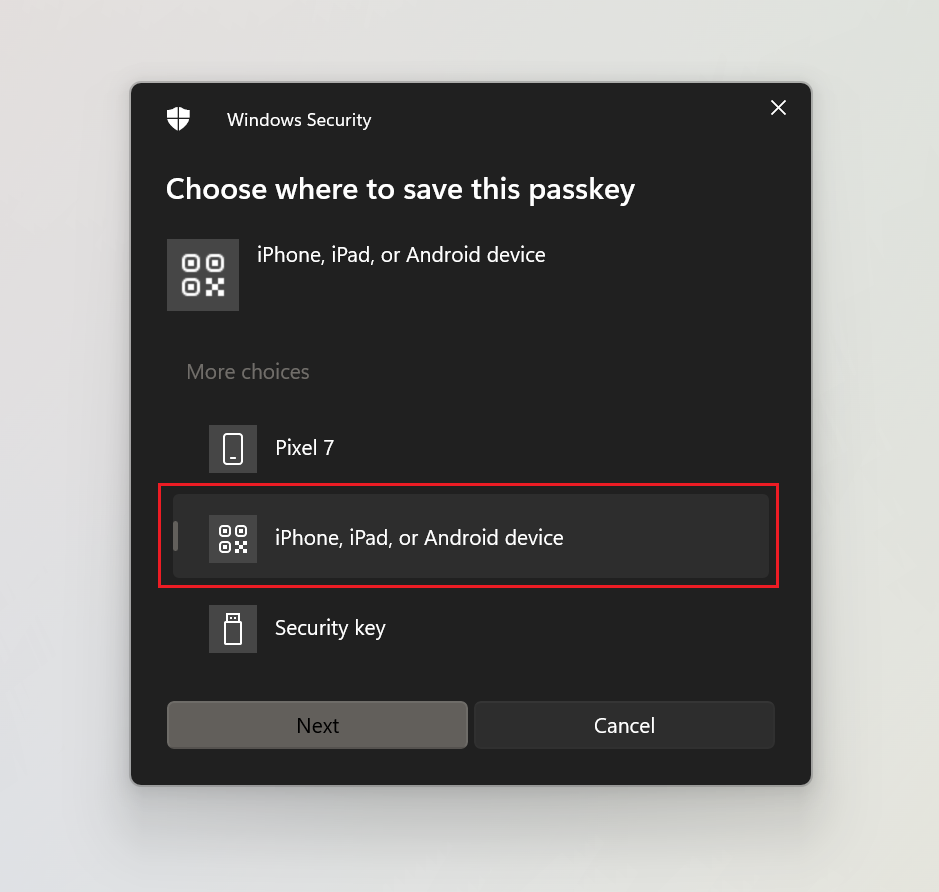
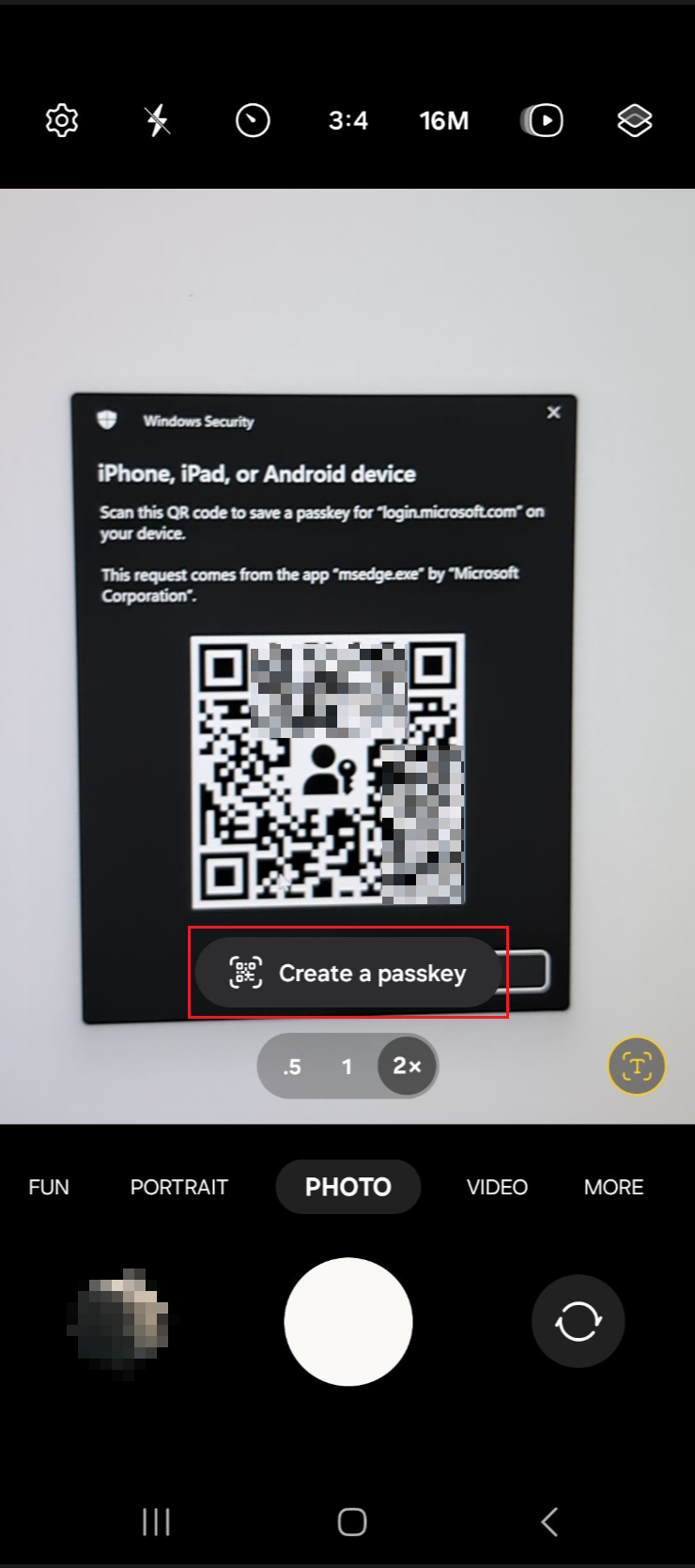
Click through the dialog and make sure that you have the password manager set correctly (guide above) and Bluetooth is turned on on both devices (computer and mobile phone).Then you will get a pop up. Select "iPhone, iPad, or Android device".
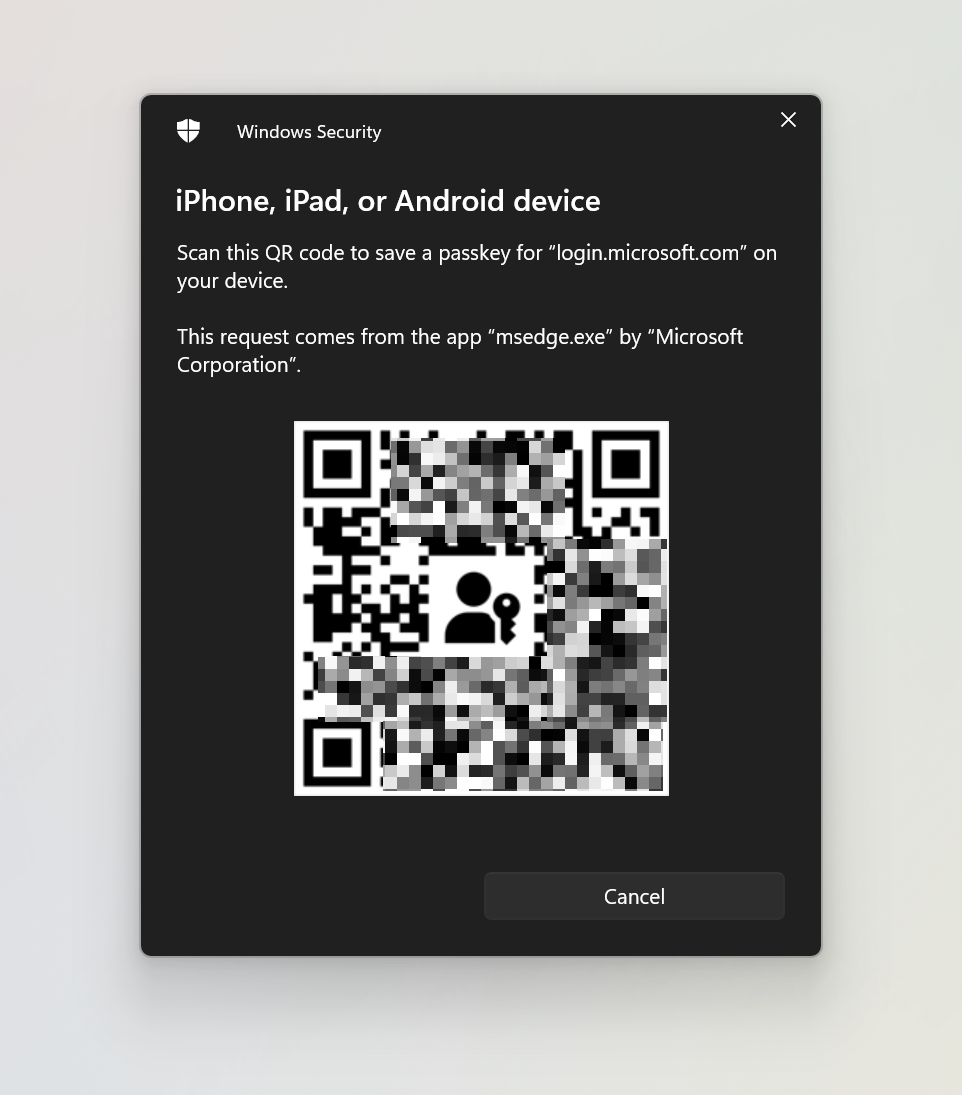
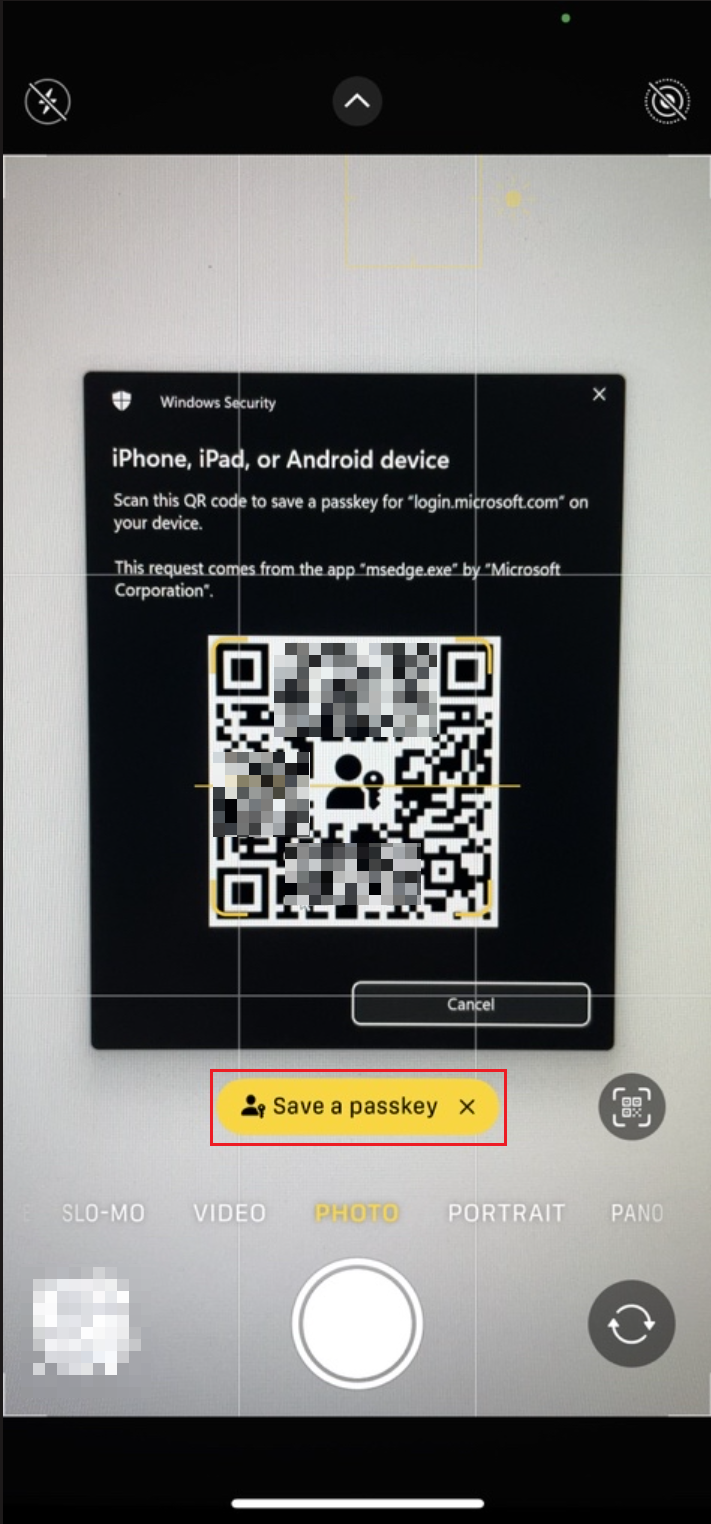
Switch to your mobile phone and click scan the QR code that appears on the Computer.
Finally you have to save the passkey option allowed byto your organizationmobile
Select "Save/Create a passkey" and follow the wizzard.
IPhone:
Android:
Final sign in process & how to use it
After you have setup the passkey to your mobile phone you are able to use this sign in method. If you are now faced with a Microsoft Login page (https://login.microsoftonline.com or https://login.microsoft.com) you will be redirected to the following dialogue (e.g. first sign in on yournew device
For Android devices select the biometricaccording device model or deviceuse verification
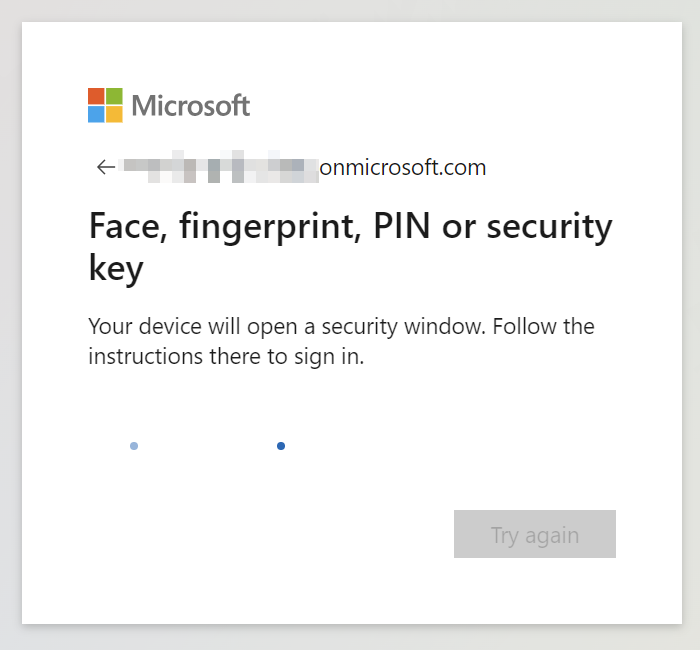
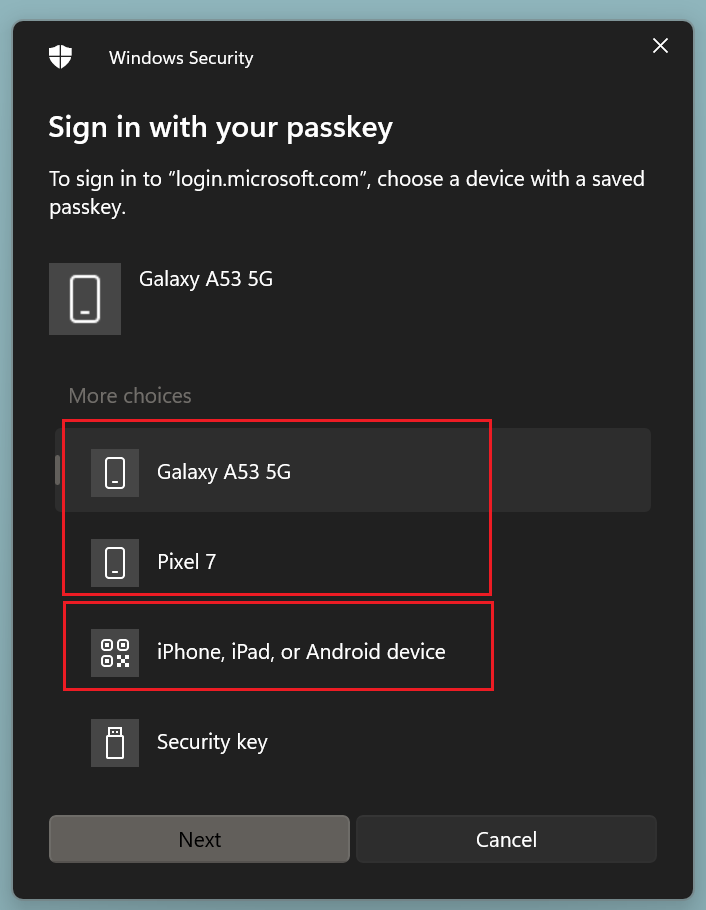
Then you get redirected to your application or website and testyou sign-have completed the sign in
Best
Troubleshooting
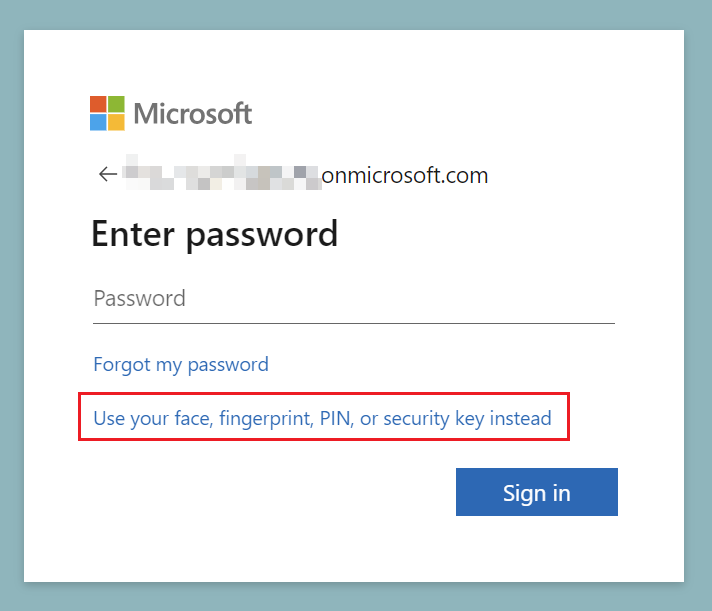
If the above steps are not displayed automatically and you are prompted to enter your password, you can click on the link below the input field and you will be redirected to the experience described above.
Conclusion
While setting up passkeys for usersyour
Last but not removeleaste yourmake existingsure MFAthat methodyou until testing is complete
Summary
Passkeys provideown a modern,valid phishing-resistant,TAP passwordlessto sign-insetup option for Microsoft workcorrectly and schoolcheck accounts.that IT has tested this accordingly (hints: Entra Conditional Access policies, Intune compliance policies, Entra Authentication Strength).