
Installation process for Windows
This guide is for setting up a Flutter environment to test mobile applications with Android Studio. This guide uses Visual Studio Code with the Flutter extension.
Install Flutter SDK
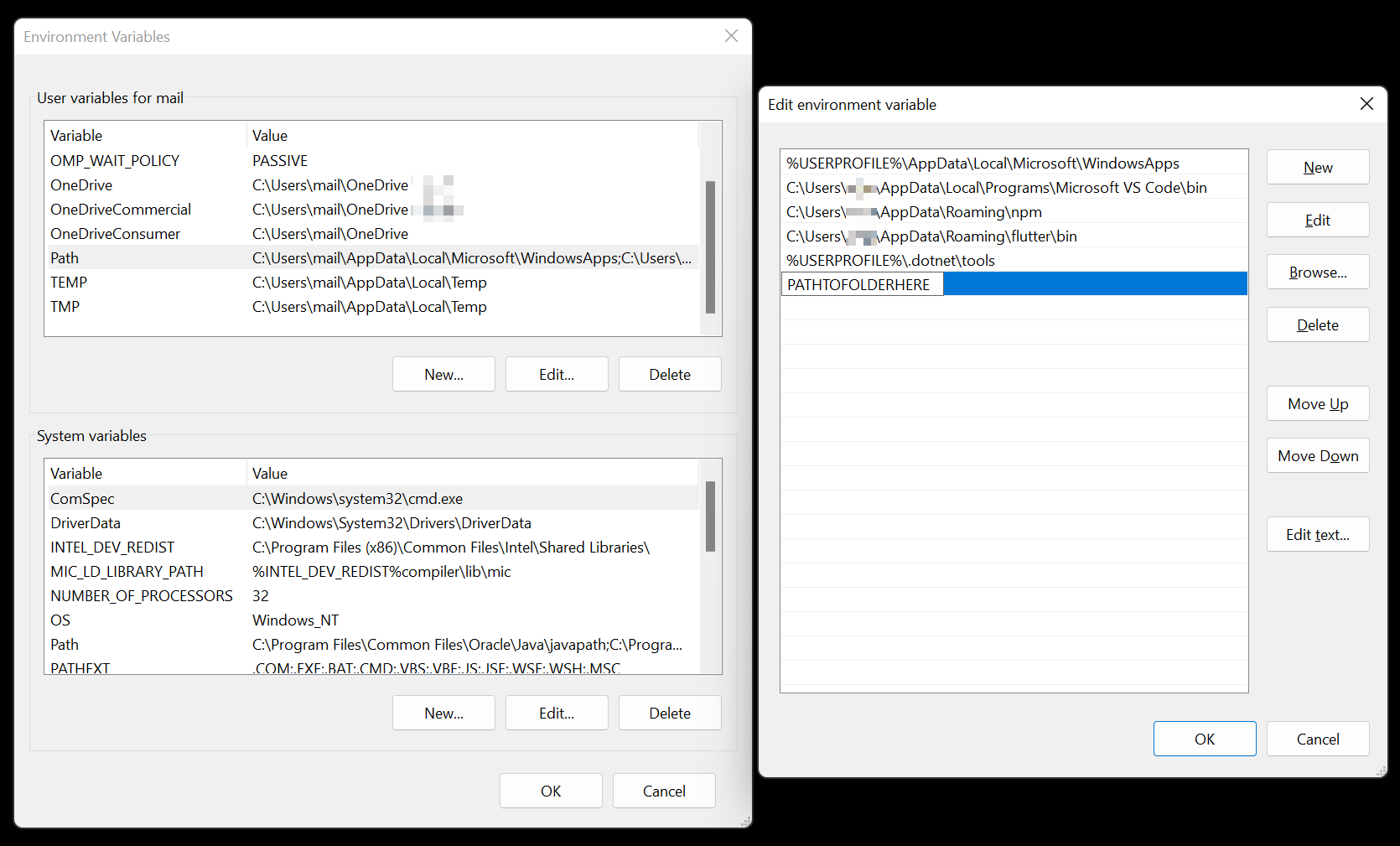
Test installation
If this returns an error you have to search specifically for the message. Otherwise you have completed the installation successfully.
Install Android Studio
To install Android Studio you can use the winget CLI tool. Just copy the following command into a terminal session.
winget install --id=Google.AndroidStudio -eAfter the installation was successful you find "Android Studio" as a new App in start menu.
Create new device
Open Android Studio and choose "Device Manager".
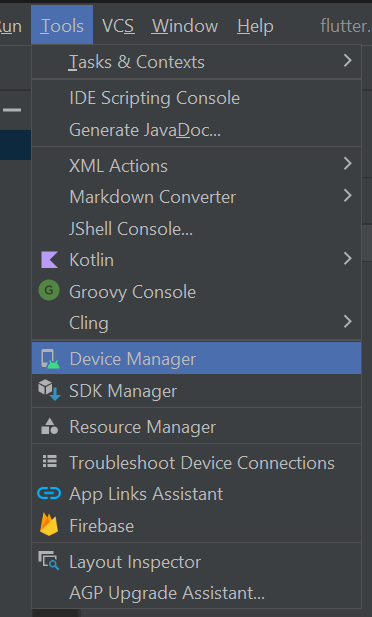
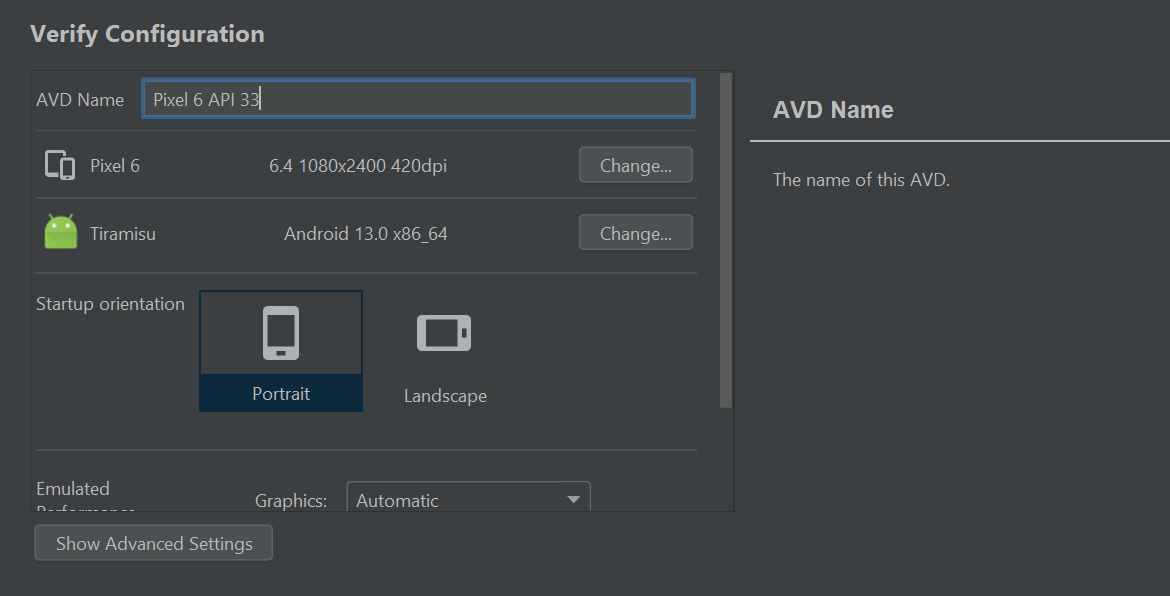
Then create a new device with the newest available Hardware and Android version. After giving a name to the device you can start this VM via the Device Manager and use it like a physical device.
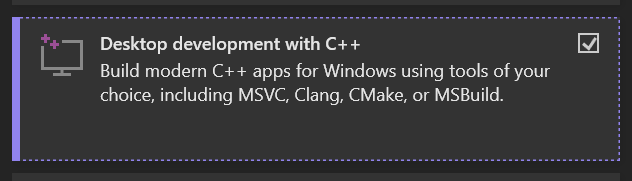
Install Visual Studio
Install Java
The Java Virtual Runtime can also be installed via winget. Just type this command and wait for the installation to finish.
winget install --id=Oracle.JDK.18 -eCheck Flutter setup
To check the flutter dependencies the following command can be used. If there are still some errors, you can search the internet for the messages.
flutter doctor -vCreate blank project
The basic structure of a flutter project can be created using the following command. The name of the project can also be specified here.
flutter create --org ch.lucanoahcaprez mynewflutterappRun app code
To run the app code you first have to select the previously created virtual Android device. Click "No Devices" in the bottom right corner of VS Code. There you can select the virtual Android device.
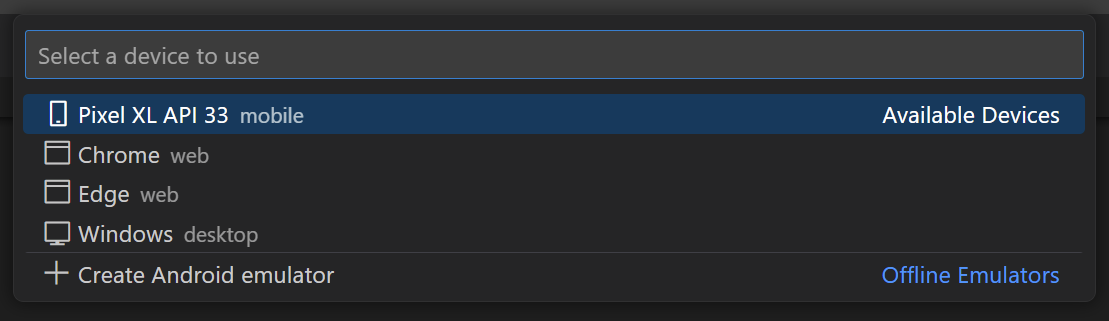
The only thing left to do now is to enter the execution command:
flutter run